0. Introduction
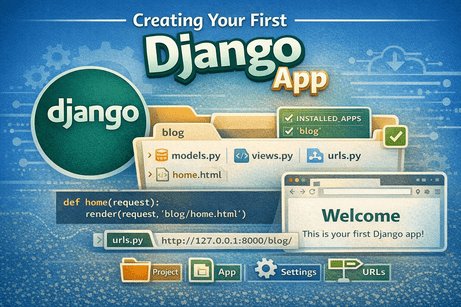
After setting up your Django project and understanding its structure, the next important step is to create your first Django app. In Django, a project is made up of one or more apps, and each app is responsible for a specific feature or section of the website.
In this tutorial, you will learn what a Django app is, why apps are important, how to create one, how to register it in your project, and how to begin using it to build real features.
1. What Is a Django App?
A Django app is a self-contained module that handles one specific part of a website.
For example, if you are building a blog website, you might have:
- one app for blog posts
- one app for user accounts
- one app for comments
- one app for contact messages
Each app contains its own logic, such as:
- models
- views
- templates
- admin configuration
- tests
This modular design is one of Django’s biggest strengths.
2. Project vs App
This is one of the most important beginner concepts in Django.
Django Project
The project is the whole website or web application.
Django App
An app is one part of the website that performs a specific function.
Example
Imagine you are creating an online learning platform:
- Project = the entire platform
- App 1 = courses
- App 2 = users
- App 3 = quizzes
- App 4 = payments
This structure keeps the project organized and easier to manage.
3. Why Django Uses Apps
Django encourages app-based development because it offers many advantages:
- better organization
- easier maintenance
- reusable code
- cleaner separation of responsibilities
- easier teamwork
Instead of putting all code in one place, Django separates features into apps.
This makes large projects much easier to understand.
4. When Do You Create an App?
You create a new app when your project needs a new functional module.
For example:
blogfor articlesshopfor productsusersfor authentication-related featuresdashboardfor admin-style pagescontactfor contact forms
In small beginner projects, you may start with only one app. In larger projects, you may have several apps.
5. Creating Your First App
To create an app, open your terminal in the Django project root where manage.py is located, then run:
python manage.py startapp blogHere, blog is the name of the app.
After running this command, Django creates a new folder named blog.
6. Files Created Inside the App
The new app folder usually contains:
blog/
├── __init__.py
├── admin.py
├── apps.py
├── migrations/
├── models.py
├── tests.py
└── views.py
Let us understand each file.
7. Understanding the App Files
__init__.py
This file tells Python that the folder is a Python package. It is usually empty.
admin.py
This file is used to register models in the Django admin panel.
apps.py
This contains the app configuration.
Example:
from django.apps import AppConfig

class BlogConfig(AppConfig):
    default_auto_field = 'django.db.models.BigAutoField'
    name = 'blog'
migrations/
This folder stores migration files that track database structure changes for this app.
models.py
This file is used to define database models.
tests.py
This file is used to write tests for the app.
views.py
This file contains the views that handle requests and return responses.
8. Registering the App in the Project
Creating the app folder is not enough. You must also tell Django that this app is part of the project.
To do that, open:
config/settings.pyFind the INSTALLED_APPS list and add your app name:
INSTALLED_APPS = [
    'django.contrib.admin',
    'django.contrib.auth',
    'django.contrib.contenttypes',
    'django.contrib.sessions',
    'django.contrib.messages',
    'django.contrib.staticfiles',
    'blog',
]
Now Django recognizes the blog app as part of the project.
9. Why Registering the App Is Important
If you do not add the app to INSTALLED_APPS, Django will not fully use it.
For example:
- models may not be detected properly
- templates and app configuration may not behave as expected
- migrations may not work correctly
So after creating an app, registering it is an essential step.
10. Creating Your First View in the App
Now let us add a simple view inside blog/views.py.
from django.http import HttpResponse

def home(request):
    return HttpResponse("Hello, this is my first Django app!")
What this does
This view is a Python function that receives a request and returns a response.
When called, it shows simple text in the browser.
11. Creating App URLs
It is a best practice to give each app its own urls.py file.
Inside the blog folder, create a new file named:
urls.pyThen write:
from django.urls import path
from . import views

urlpatterns = [
    path('', views.home, name='home'),
]
What this means
This connects the empty path '' to the home view.
So if the app is included at /blog/, then visiting /blog/ will call views.home.
12. Connecting App URLs to Project URLs
Now you need to connect the app’s URLs to the main project.
Open:
config/urls.pyUpdate it like this:
from django.contrib import admin
from django.urls import path, include

urlpatterns = [
    path('admin/', admin.site.urls),
    path('blog/', include('blog.urls')),
]
What this does
/admin/goes to the admin panel/blog/goes to theblogapp URLs
So now if you visit:
you should see:
Hello, this is my first Django app!
13. Full Flow of Your First App
At this point, the flow works like this:
- user visits
/blog/ config/urls.pysends the request toblog.urlsblog/urls.pymatches the empty path''- Django calls
views.home - the browser displays the returned text
This is your first working Django app.
14. Creating a Better View with render()
Returning plain text is useful for testing, but most websites display HTML pages.
Instead of HttpResponse, you will often use render().
Example in blog/views.py:
from django.shortcuts import render

def home(request):
    return render(request, 'blog/home.html')
This tells Django to render an HTML template.
15. Creating Your First Template
Inside your app, create the following folder structure:
blog/
└── templates/
    └── blog/
        └── home.html
Then inside home.html, write:
<!DOCTYPE html>
<html>
<head>
    <title>My Blog App</title>
</head>
<body>
    <h1>Welcome to my first Django app</h1>
    <p>This page is rendered from a template.</p>
</body>
</html>
Now when you visit /blog/, Django renders the HTML page instead of plain text.
16. Why App Templates Are Often Nested
You may wonder why the template is stored like this:
templates/blog/home.htmlinstead of simply:
templates/home.htmlThe reason is to avoid template name conflicts between apps.
For example:
blog/home.htmlshop/home.htmlusers/home.html
This keeps templates organized and prevents confusion.
17. Common Beginner Mistakes
Mistake 1: Forgetting to register the app
If the app is not added to INSTALLED_APPS, parts of it may not work correctly.
Mistake 2: Forgetting to create urls.py in the app
Without app URLs, you cannot organize routes cleanly.
Mistake 3: Forgetting to include app URLs in project URLs
If you do not use include('blog.urls'), Django will not know about your app routes.
Mistake 4: Wrong template path
If the file path or template name is incorrect, Django may raise a template error.
Mistake 5: Writing code in the wrong file
Views go in views.py, models go in models.py, and admin registration goes in admin.py.
18. Example of Final Structure After Creating the App
Your project may now look like this:
my_django_project/
│
├── manage.py
├── config/
│   ├── __init__.py
│   ├── settings.py
│   ├── urls.py
│   ├── asgi.py
│   └── wsgi.py
│
└── blog/
    ├── __init__.py
    ├── admin.py
    ├── apps.py
    ├── migrations/
    ├── models.py
    ├── tests.py
    ├── views.py
    ├── urls.py
    └── templates/
        └── blog/
            └── home.html
This is a clean starting point for building features.
19. Best Practices for Naming Apps
Choose app names that clearly describe their purpose.
Good examples:
blogusersshopordersdashboard
Avoid vague names like:
app1testappmyprojectpart
A clear name makes the project more readable.
20. Beginner Analogy
Think of your Django project as a shopping mall.
- the project is the whole mall
- each app is a different store
- one store sells books
- one store sells clothes
- one store handles food
Each store has its own staff, products, and organization, but all stores belong to the same mall.
That is how Django apps work inside a project.
21. Summary
In this tutorial, you learned how to create your first Django app using python manage.py startapp, explored the files Django creates, registered the app in INSTALLED_APPS, created a simple view, added app URLs, connected them to the main project, and rendered your first HTML template.
This is a major step in Django learning because apps are the building blocks of Django projects.
22. Key Takeaways
- A Django app is a modular component of a project.
- Apps are created with
python manage.py startapp appname. - After creating an app, you must add it to
INSTALLED_APPS. - Views are written in
views.py. - App routes are usually placed in
urls.py. - Templates are used to render HTML pages.
- One project can contain multiple apps.
23. Small Knowledge Check
- What is the difference between a Django project and a Django app?
- Which command creates a new Django app?
- Why must an app be added to
INSTALLED_APPS? - Which file contains app views?
- Why is it useful to create a separate
urls.pyinside an app?
24. Conclusion
Creating your first Django app is one of the most exciting steps in learning Django because it is where your project starts becoming real. You are no longer only configuring the framework, you are now building actual features.



💬 Comments
No comments yet. Be the first to comment!
Login to comment.