Introduction
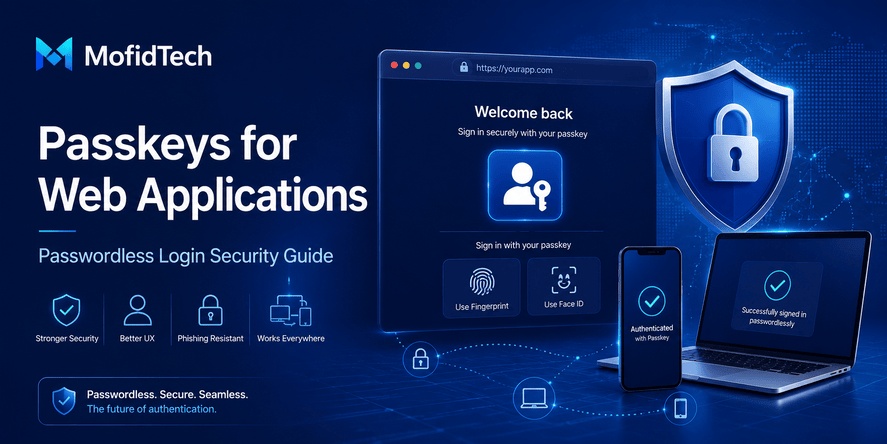
Passwords have been the default login method for decades, but they are also one of the weakest parts of modern web security. Users forget them, reuse them, store them insecurely, share them, and fall for phishing pages that look almost identical to real login screens. Developers try to reduce this risk with password rules, email verification, SMS codes, authenticator apps, rate limiting, and account recovery workflows. These layers help, but they also make login systems more complex.
Passkeys are changing that model.
A passkey is a passwordless authentication credential that allows users to sign in with the same method they use to unlock their device, such as a fingerprint, face recognition, PIN, or pattern. The FIDO Alliance describes passkeys as FIDO cryptographic credentials tied to a user account on a website or application. Google also describes passkeys as a safer and easier alternative to passwords for signing in to apps and websites.
For web developers, passkeys are not just a new login button. They represent a major shift in authentication design. Instead of asking users to prove identity by remembering a secret, passkeys rely on public-key cryptography, device-based user verification, and origin-bound credentials. This makes them much more resistant to phishing, credential stuffing, and password reuse attacks.
This guide explains how passkeys work, why they matter, when developers should adopt them, what mistakes to avoid, and how to plan passkey support in a secure web application without showing code.
Table of Contents
- What Are Passkeys?
- Why Password-Based Login Is Becoming a Security Problem
- How Passkey Authentication Works
- Passkeys vs Passwords vs MFA
- Benefits of Passkeys for Web Applications
- Where Passkeys Fit in a Real Web Architecture
- Passkeys and User Experience
- Account Recovery and Lost Devices
- Security Considerations for Developers
- Performance and Operational Considerations
- Common Mistakes When Adding Passkeys
- Best Practices Checklist
- Should Every Website Add Passkeys?
- Real-World Use Cases
- Troubleshooting Passkey Adoption
- FAQ
- Conclusion
What Are Passkeys?
Passkeys are passwordless login credentials that allow a user to authenticate without typing a traditional password. Instead of entering a shared secret, the user confirms their identity through a device unlock method such as fingerprint, facial recognition, PIN, or pattern.
The important point is that the website does not receive the user’s fingerprint, face data, or device PIN. Those remain on the user’s device or within the device’s secure authentication system. The website receives cryptographic proof that the user controls the correct passkey.
The W3C WebAuthn specification defines an API for creating and using strong, scoped, public key-based credentials for authenticating users on web applications. In simple terms, WebAuthn is the web standard that makes passkey login possible in browsers and web applications.
Simple Definition
A passkey is a secure digital credential that replaces a password by using public-key cryptography and device-based user verification.
What Users Experience
From the user’s perspective, passkeys feel simple. A user visits a website, chooses to sign in, and confirms the login using their device. They may use Face ID, Touch ID, Windows Hello, Android screen lock, a PIN, or another supported unlock method.
The user does not need to remember a password. The website does not need to store a password. The attacker cannot simply steal and reuse a password because there is no password to type.
What Developers Should Understand
From a developer’s perspective, passkeys require a different authentication mindset. Instead of validating a password hash, the application verifies a cryptographic response. The server stores public credential information, while the private key remains protected by the user’s device or credential manager.
This reduces the damage caused by database leaks. If an attacker steals a database that contains passkey public keys, those public keys are not enough to sign in as users.
Why Password-Based Login Is Becoming a Security Problem
Passwords are familiar, but familiarity does not make them safe. The biggest weakness of passwords is that they depend heavily on user behavior.
Users often choose weak passwords because they need to remember them. They reuse passwords across multiple websites because every service asks for another account. They may enter passwords into fake login pages because phishing pages can look convincing. They may save passwords in unsafe places, share them with colleagues, or use patterns that attackers can guess.
Common Password Risks
| Password Risk | Why It Matters |
|---|---|
| Password reuse | A breach on one website can compromise accounts on other websites. |
| Phishing | Users may type passwords into fake login pages. |
| Credential stuffing | Attackers test leaked username-password combinations at scale. |
| Weak passwords | Short or predictable passwords are easier to guess. |
| Forgotten passwords | Reset workflows create support costs and security risks. |
| Password fatigue | Users become frustrated by complex rules and frequent resets. |
Why More Rules Do Not Fully Solve the Problem
Many websites try to solve password risk by adding stricter password rules. They require uppercase letters, numbers, symbols, minimum lengths, password expiration, and multi-factor authentication. Some of these practices help, but they can also create friction.
A very strict password policy may encourage users to write passwords down or reuse a “strong” password everywhere. Frequent password resets may cause users to choose predictable variations. SMS-based verification can help, but SMS codes are still vulnerable to phishing, SIM swap attacks, and delivery problems.
Passkeys address the problem at a deeper level by removing the shared secret from the login flow.
How Passkey Authentication Works
Passkey authentication is based on public-key cryptography. This means the login process uses two related keys: a private key and a public key.
The private key stays with the user’s authenticator, such as a phone, laptop, operating system credential manager, browser credential manager, or hardware security key. The public key is stored by the website or application.
When the user signs in, the website asks the user’s device to prove that it controls the private key. The device creates a cryptographic response. The server verifies that response using the stored public key.
The private key is not sent to the website.
The password is not typed.
The user’s biometric data is not sent to the website.
Passkey Registration Flow
Passkey registration is the moment when a user creates a passkey for a website or application.
At a high level, the process looks like this:
| Step | What Happens |
|---|---|
| User chooses to create a passkey | The website starts a passkey registration process. |
| Website creates a registration challenge | The server generates a unique challenge for this registration attempt. |
| Device asks for user verification | The user confirms with fingerprint, face recognition, PIN, or another unlock method. |
| Credential is created | The authenticator creates a public-private key pair. |
| Server stores public credential data | The server stores the public key and credential identifier. |
| User can sign in later | The passkey becomes available for future authentication. |
Google’s passkey developer guidance explains that websites can allow users to create passkeys and sign in through passkey-based flows, including designs that accommodate existing password users.
Passkey Login Flow
Passkey login is the moment when the user returns to authenticate.
At a high level:
| Step | What Happens |
|---|---|
| User starts sign-in | The user visits the login page or account area. |
| Server sends a challenge | The website asks the authenticator to prove possession of the passkey. |
| User verifies locally | The user unlocks the device with biometrics, PIN, or another method. |
| Authenticator signs the challenge | The private key signs the challenge without leaving the device. |
| Server verifies the response | The website uses the stored public key to verify the signature. |
| Session begins | The application creates a secure user session. |
This is different from password login because the server is not checking whether a typed secret matches a stored hash. It is checking whether a cryptographic proof is valid.
What the Server Stores
A passkey-ready server typically stores information such as:
| Stored Item | Purpose |
|---|---|
| User account reference | Connects the credential to the correct user. |
| Credential identifier | Helps identify the correct passkey. |
| Public key | Allows the server to verify login responses. |
| Sign-in counter or metadata | Helps detect suspicious credential behavior when applicable. |
| Device or credential label | Helps users manage multiple passkeys. |
The server should not store the private key. The private key belongs to the authenticator and should never be exposed to the application.
Why Origin Binding Matters
One of the strongest advantages of passkeys is that credentials are scoped to a website or relying party. The WebAuthn specification explains that public key credentials are scoped to a WebAuthn relying party and can only be accessed by origins belonging to that relying party.
This helps protect users from phishing. A fake website cannot easily ask the browser for the real website’s passkey because the credential is tied to the legitimate origin.
Passkeys vs Passwords vs MFA
Passkeys are often compared with passwords and multi-factor authentication. The comparison is useful, but developers should understand that passkeys are not just “another factor.” They change the authentication model.
| Feature | Passwords | Password + MFA | Passkeys |
|---|---|---|---|
| User must remember a secret | Yes | Yes | No |
| Resistant to phishing | Low | Medium to high, depending on MFA type | High |
| Vulnerable to password reuse | Yes | Still possible | No traditional password reuse |
| Server stores password verifier | Yes | Yes | Public credential data |
| User experience | Familiar but often frustrating | More secure but more steps | Usually faster and simpler |
| Account recovery complexity | Medium | Medium to high | High if not planned well |
| Best use case | Basic accounts | Transitional security | Modern secure login |
Are Passkeys the Same as MFA?
No. Passkeys are not exactly the same as traditional MFA. In many cases, passkeys can provide strong authentication because they combine possession of the authenticator with local user verification.
However, whether passkeys replace MFA depends on the risk level of the application, compliance requirements, and implementation quality.
For low-risk consumer apps, passkeys may become the primary authentication method. For high-risk systems, passkeys may be part of a broader authentication strategy that includes risk-based checks, device trust, session monitoring, and administrative controls.
Are Passkeys Better Than SMS Codes?
For many security scenarios, passkeys are stronger than SMS verification. SMS codes can be intercepted, phished, delayed, or affected by SIM swap attacks. Passkeys are designed to be phishing-resistant and do not require users to copy one-time codes into login pages.
That does not mean every website can remove SMS immediately. Some users still need fallback methods. But developers should understand that SMS is often a recovery or transition mechanism, not an ideal long-term authentication method.
Benefits of Passkeys for Web Applications
Passkeys offer benefits for users, developers, security teams, and business owners.
Stronger Protection Against Phishing
Phishing is one of the biggest reasons passkeys matter. In a password-based system, a fake website can trick users into typing their credentials. With passkeys, the browser and authenticator help ensure that the credential is used only for the legitimate website origin.
This does not eliminate every form of social engineering, but it reduces the risk of a user handing over a reusable password.
Reduced Credential Stuffing Risk
Credential stuffing happens when attackers use leaked usernames and passwords from one service to access another service. Because passkeys do not require users to reuse a typed password, they reduce this attack path.
A leaked password from another website cannot be used to sign in to a passkey-only account.
Less Damage From Database Breaches
In a password system, a database breach can expose password hashes. Strong hashing reduces risk, but attackers may still attempt offline cracking.
In a passkey system, the server stores public credential data. Public keys are designed to be public. They are not useful for signing in without the matching private key.
Better User Experience
Passkeys can make login faster. Users do not need to remember complex passwords, open password reset emails, copy verification codes, or manage password managers manually.
For many users, unlocking a device is already a familiar behavior. Passkeys use that existing habit.
Lower Support Burden
Forgotten passwords create support tickets. Account lockouts create frustration. Password reset emails fail, land in spam, or become attack targets.
Passkeys can reduce some of this burden, especially when paired with a well-designed account recovery system.
Better Long-Term Security Culture
Passkeys encourage developers to think about authentication as architecture, not just a login form. They push teams toward secure session design, account recovery planning, user education, device management, and risk-based access control.
Where Passkeys Fit in a Real Web Architecture
Passkeys are part of an authentication system, not the entire system. A complete login architecture still needs account management, session handling, recovery flows, logging, monitoring, and abuse protection.
Core Components of a Passkey-Ready Web App
| Component | Role |
|---|---|
| User account system | Stores user identity and profile information. |
| Passkey registration flow | Lets users add passkeys to their account. |
| Passkey authentication flow | Lets users sign in with passkeys. |
| Session management | Keeps users authenticated after successful login. |
| Account recovery | Helps users regain access if devices are lost. |
| Device management | Lets users view and remove passkeys. |
| Risk monitoring | Detects unusual login behavior. |
| Admin controls | Supports account support, security review, and policy enforcement. |
Passkeys and Sessions
A passkey proves the user’s identity during login. After login, the web application still uses sessions or tokens to keep the user signed in.
This means passkeys do not remove the need for secure session design. Developers still need to think about session expiration, secure cookies, suspicious activity detection, logout behavior, and protection against session hijacking.
Passkeys and Existing Password Systems
Most websites should not switch from passwords to passkeys overnight. A safer approach is gradual adoption.
A typical migration path could look like this:
| Stage | Strategy |
|---|---|
| Stage 1 | Keep passwords and allow users to add passkeys. |
| Stage 2 | Encourage passkey login for returning users. |
| Stage 3 | Make passkeys the preferred login method. |
| Stage 4 | Offer passwordless accounts for users who are ready. |
| Stage 5 | Reduce password dependency where appropriate. |
This approach avoids excluding users who are on older devices, shared machines, unsupported browsers, or enterprise environments with specific restrictions.
Passkeys and User Experience
Security succeeds only when users can actually use it. A confusing passkey implementation may create more support problems than it solves.
Explain Passkeys Clearly
Many users still do not understand passkeys. Avoid technical wording on the main login screen. Instead of saying “Register a WebAuthn credential,” use simple explanations such as:
“Sign in securely with your device.”
“Use your fingerprint, face, or screen lock instead of a password.”
“Create a passkey for faster and safer login.”
The technical details can be explained in a help page, but the main flow should be simple.
Do Not Force Passkeys Too Early
Some users may not be ready. Others may be using shared devices, workplace devices, older browsers, or devices without biometric support.
A better experience is to introduce passkeys gradually:
| User Situation | Recommended UX |
|---|---|
| New user | Offer passkey setup after account creation. |
| Existing user | Suggest passkey setup after successful login. |
| Security-sensitive account | Encourage passkey setup with clear benefits. |
| User ignores prompt | Allow them to continue without constant interruption. |
| User has multiple devices | Encourage adding more than one passkey. |
Let Users Manage Their Passkeys
Users should be able to see which passkeys are connected to their account. A passkey management page can show friendly labels such as:
Laptop passkey
Phone passkey
Work device
Security key
Last used date
Date added
Users should also be able to remove old or suspicious passkeys.
Use Friendly Recovery Messaging
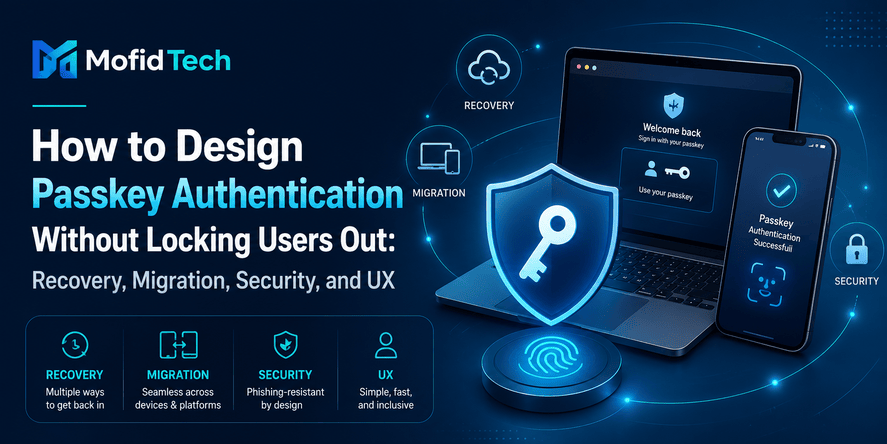
Account recovery should be clear and calm. Users should understand what to do if they lose a device, change phones, or cannot access their passkey.
Avoid messages that create panic. Instead of saying “Authentication failed,” explain the next useful step:
“Your passkey could not be used on this device. Try another device, use a backup method, or start account recovery.”
Account Recovery and Lost Devices
Account recovery is one of the most important parts of passkey planning. A secure login method can be weakened by a poor recovery process.
If an attacker cannot bypass passkeys directly but can easily abuse account recovery, the overall system is still vulnerable.
Common Lost-Access Scenarios
| Scenario | Example |
|---|---|
| Lost phone | User’s main passkey was stored on the phone. |
| New device | User buys a new laptop and cannot access the old one. |
| Work device removed | Employee loses access to a managed device. |
| Browser profile reset | Credential manager data is unavailable. |
| Account takeover attempt | Attacker tries to abuse recovery options. |
Recovery Options
Different applications may use different recovery strategies:
| Recovery Method | Benefit | Risk |
|---|---|---|
| Backup passkey | Strong and user-friendly | User must set it up before losing access. |
| Email recovery | Familiar | Email account may be compromised. |
| Admin-assisted recovery | Useful for enterprise apps | Requires strong verification process. |
| Recovery codes | Good backup option | Users may lose or expose them. |
| Identity verification | Strong for high-risk apps | Can add friction and privacy concerns. |
Best Practice: Encourage Multiple Passkeys
Users should be encouraged to register more than one passkey when possible. For example, they may use one passkey on their phone and another on their laptop. This reduces the risk of total account lockout.
Do Not Make Recovery Weaker Than Login
A common mistake is to build a strong passkey login system but allow account recovery through a weak email link or basic support request. Attackers will target the weakest path.
Recovery should include risk checks such as:
Device history
Email verification
Recent security changes
Suspicious location patterns
Administrative review for sensitive accounts
Delay periods for high-risk changes
Notifications to existing trusted devices
Security Considerations for Developers
Passkeys improve authentication security, but they do not automatically secure the entire application. Developers must still design the surrounding system carefully.
Protect the Registration Flow
Passkey registration should happen only when the user is properly authenticated or during a trusted account creation flow. If attackers can add their own passkey to a victim’s account, they may gain persistent access.
Important questions:
Who is allowed to add a passkey?
Should the user re-authenticate before adding one?
Should the user receive an email notification?
Should high-risk accounts require additional confirmation?
Can users review newly added passkeys?
Protect the Login Flow
The login flow should be resistant to abuse. Even if passkeys reduce password attacks, attackers may still attempt enumeration, automated probing, session abuse, and recovery attacks.
Developers should consider:
Rate limiting
Bot detection
Suspicious login monitoring
User enumeration protection
Secure error messages
Session protection
Audit logging
Secure Session Management
A successful passkey login is only the beginning. After login, the session must be protected.
Important session practices include:
Secure cookie settings
Reasonable session expiration
Logout from all devices
Session invalidation after sensitive changes
Protection against cross-site attacks
Monitoring for suspicious session behavior
Notify Users About Security Events
Users should receive clear notifications for important account events:
New passkey added
Passkey removed
New device signed in
Recovery method changed
Password removed or disabled
Suspicious login attempt detected
Notifications help users detect unauthorized changes quickly.
Consider Admin and Staff Accounts First
If your website has admin users, editors, moderators, support agents, or staff dashboards, passkeys can be especially valuable there. Admin accounts often have more privileges and are more attractive targets.
A practical strategy is to introduce passkeys first for privileged users before rolling them out to all users.
Performance and Operational Considerations
Passkeys are not only a security feature. They also affect product design, support workflows, documentation, QA testing, and monitoring.
Browser and Device Compatibility
Passkey support is now widespread, but developers should still test across major environments:
Desktop browsers
Mobile browsers
Android devices
iOS devices
Windows devices
macOS devices
Linux environments where relevant
Managed enterprise devices
Password managers and credential managers
The user experience may vary depending on device, browser, operating system, and credential manager.
Logging and Observability
Authentication systems need strong observability. Developers should monitor:
Passkey registration success rate
Passkey login success rate
Failed login attempts
Recovery flow usage
Passkey removal events
Device change patterns
Support tickets related to login
Drop-off during passkey setup
This helps teams detect UX problems and security issues early.
Support Team Training
Support teams must understand passkeys at a practical level. They do not need to understand every cryptographic detail, but they should know:
What a passkey is
How users create one
What users see during login
How account recovery works
What suspicious recovery requests look like
When to escalate a security concern
A support team that does not understand passkeys may accidentally weaken security through manual recovery mistakes.
Documentation Matters
A good passkey rollout should include user-facing documentation:
What is a passkey?
Why should I create one?
What happens if I lose my phone?
Can I use passkeys on multiple devices?
How do I remove a passkey?
Can I still use my password?
Clear documentation reduces fear and support requests.
Common Mistakes When Adding Passkeys
Mistake 1: Treating Passkeys as Just a Login Button
Passkeys are not only a front-end feature. They affect authentication architecture, user management, account recovery, session security, and support workflows.
A website that simply adds a passkey button without planning the surrounding system may create confusion or security gaps.
Mistake 2: Ignoring Account Recovery
Passkeys reduce password problems, but they create a new planning requirement: what happens when users lose access to their passkeys?
If recovery is too weak, attackers will target it. If recovery is too strict, legitimate users may be locked out.
Mistake 3: Removing Passwords Too Quickly
Some users may not be ready for passwordless login. A sudden switch can create frustration, abandoned accounts, and support tickets.
Gradual adoption is usually safer.
Mistake 4: Poor User Education
Users may think passkeys send their fingerprint to the website. They may fear losing access if they change phones. They may not understand why passkeys are safer.
Clear explanations matter.
Mistake 5: No Passkey Management Page
Users need a way to view, label, and remove passkeys. Without this, they may not trust the system.
Mistake 6: Weak Security Notifications
If a new passkey is added to an account, the user should know. If a passkey is removed, the user should know. Silent security changes make attacks harder to detect.
Mistake 7: Forgetting Privileged Accounts
Admin and staff accounts should receive special attention. A blog, SaaS dashboard, or institutional application can be damaged badly if an admin account is compromised.
Mistake 8: Assuming Passkeys Solve All Security Problems
Passkeys improve authentication, but they do not replace secure coding, authorization checks, session protection, input validation, logging, or infrastructure security.
Best Practices Checklist for Passkey Adoption
Authentication Strategy Checklist
| Check | Recommendation |
|---|---|
| Define the role of passkeys | Decide whether passkeys are optional, preferred, or required. |
| Start with privileged users | Protect admin and staff accounts first. |
| Keep fallback methods carefully controlled | Avoid weak recovery paths. |
| Support gradual adoption | Do not force every user immediately. |
| Document the user journey | Explain setup, login, recovery, and removal. |
Security Checklist
| Check | Recommendation |
|---|---|
| Protect passkey registration | Require trusted authentication before adding a passkey. |
| Notify security events | Alert users when passkeys are added or removed. |
| Monitor suspicious activity | Track unusual login and recovery behavior. |
| Secure sessions | Use strong session controls after login. |
| Protect account recovery | Make recovery at least as carefully designed as login. |
User Experience Checklist
| Check | Recommendation |
|---|---|
| Use simple language | Avoid exposing technical terms to normal users. |
| Provide clear benefits | Explain faster login and stronger security. |
| Support multiple devices | Encourage users to add more than one passkey. |
| Offer account management | Let users view and remove passkeys. |
| Avoid repeated prompts | Encourage adoption without annoying users. |
Operational Checklist
| Check | Recommendation |
|---|---|
| Train support teams | Make sure support understands passkey flows. |
| Prepare help articles | Answer common user questions. |
| Track metrics | Monitor setup success, login success, and support volume. |
| Test across devices | Validate real user environments. |
| Review periodically | Update policies as passkey adoption grows. |
Should Every Website Add Passkeys?
Passkeys are valuable, but adoption should depend on the website’s risk profile, audience, and technical maturity.
Websites That Should Strongly Consider Passkeys
Passkeys are especially useful for:
SaaS applications
Developer dashboards
Admin panels
Financial or billing-related platforms
Healthcare or education portals
E-commerce accounts
Membership websites
Internal business applications
Applications with sensitive personal data
Websites with frequent account takeover attempts
Websites That Can Start Gradually
Content websites, blogs, forums, and small community platforms may not need passkeys immediately for every user. However, they can still benefit from passkeys for admin accounts, editors, and moderators.
For a website like MofidTech, passkeys would be especially useful for:
Django admin accounts
Article editors
Newsletter administrators
Tool dashboard accounts
Future user accounts
Paid member areas if added later
When to Wait
A team may decide to wait if:
The current login system is unstable
The team does not yet have a secure recovery process
The user base relies heavily on unsupported environments
The product has no account system yet
The team lacks time to test the flow properly
Waiting does not mean ignoring passkeys. It means preparing the foundation first.
Real-World Use Cases
Use Case 1: Developer Tool Dashboard
A developer tool platform may allow users to check SEO, security, or performance. If the tool stores reports, API keys, billing data, or project information, passkeys can reduce account takeover risk.
Passkeys are especially useful because developers are frequent targets for credential attacks.
Use Case 2: Django Admin Area
A Django-based website often has a powerful admin dashboard. If an attacker compromises an admin account, they may change articles, inject malicious content, access user data, or damage the website’s reputation.
Adding passkeys for admin users can significantly improve protection.
Use Case 3: SaaS Application
A SaaS product may store business data, customer records, analytics, files, or payment information. Password compromise can create serious damage.
Passkeys can improve security while making login easier for teams.
Use Case 4: Education Platform
Student and staff portals often suffer from weak passwords and password reuse. Passkeys can help reduce phishing risk, especially when users access the platform from personal devices.
However, education platforms must plan carefully for shared devices, lost phones, and support workflows.
Use Case 5: E-Commerce Accounts
E-commerce accounts may store addresses, order history, saved payment methods, and loyalty points. Passkeys can reduce fraud risk and make checkout smoother for returning users.
Troubleshooting Passkey Adoption
Problem: Users Do Not Understand Passkeys
Solution: Use simple language. Explain that passkeys let users sign in with their device instead of typing a password. Avoid technical terms on the main login screen.
Problem: Users Fear Losing Access
Solution: Encourage backup passkeys and provide a clear recovery process. Explain how users can add another device and manage existing passkeys.
Problem: Passkey Setup Has Low Adoption
Solution: Prompt users at the right moment. The best time is often after a successful login, account creation, or security settings visit. Avoid showing prompts during urgent tasks.
Problem: Support Tickets Increase
Solution: Improve help articles, train support teams, and review unclear messages in the login flow. Many passkey problems are communication problems.
Problem: Users Cannot Sign In on a New Device
Solution: Provide clear instructions for using another trusted device, backup passkeys, or recovery methods. Make sure recovery does not become the weakest security path.
Problem: The Team Is Unsure Whether to Remove Passwords
Solution: Do not rush. Start with passkeys as an optional or preferred method. Collect data before making passwordless login mandatory.
Comparison: When to Use Passwords, MFA, and Passkeys
| Scenario | Recommended Approach |
|---|---|
| Basic low-risk account | Passwords may still work, but passkeys improve UX and security. |
| Admin dashboard | Strongly consider passkeys, ideally required for privileged users. |
| SaaS account with business data | Passkeys are highly recommended. |
| Public blog with only editor login | Add passkeys for admins and editors first. |
| High-risk financial account | Use passkeys with risk-based monitoring and strong recovery. |
| Legacy user base | Introduce passkeys gradually while keeping controlled fallback options. |
Practical Implementation Planning Without Code
Before adding passkeys, developers should answer several planning questions.
Product Questions
Who needs passkeys first?
Will passkeys be optional or required?
How will users learn about passkeys?
Where will users manage passkeys?
What happens during account recovery?
Will passwords remain available?
Security Questions
Can attackers add a passkey to someone else’s account?
Are users notified when passkeys change?
Is recovery stronger than ordinary email verification?
Are privileged users protected first?
Are login and recovery events logged?
Are suspicious attempts monitored?
UX Questions
Is the passkey prompt easy to understand?
Can users skip setup if they are not ready?
Can users add more than one passkey?
Can users remove old passkeys?
Are error messages helpful?
Operational Questions
Does support understand the flow?
Are help pages available?
Are metrics being tracked?
Has the team tested major browsers and devices?
Is there a rollback plan if adoption causes problems?
Security Considerations for High-Risk Applications
For high-risk applications, passkeys should be part of a broader security model.
Risk-Based Authentication
Even with passkeys, some events may require additional checks:
New device
New country or region
Unusual behavior
Sensitive data export
Billing changes
Password removal
Adding or removing passkeys
Changing recovery email
Risk-based authentication helps balance security and usability.
Administrative Controls
Organizations may need policies such as:
Require passkeys for admins
Require multiple passkeys for privileged users
Block weak recovery methods
Review passkey changes in audit logs
Require approval for sensitive account recovery
Disable accounts after suspicious activity
Audit Logs
Audit logs should record important security events. Logs should help answer:
Who added a passkey?
When was it added?
Which account was affected?
Was the action expected?
Was recovery used?
Was a session created afterward?
Audit logs are essential for investigation and compliance.
FAQ
1. What are passkeys in web applications?
Passkeys are passwordless login credentials that allow users to sign in to websites and applications using a device unlock method such as fingerprint, face recognition, PIN, or pattern. They use public-key cryptography instead of a typed password.
2. Are passkeys safer than passwords?
Yes, passkeys are generally safer than passwords because they reduce phishing risk, remove password reuse, and avoid storing password secrets on the server. They are designed so the private key stays protected by the user’s device or credential manager.
3. Do passkeys replace two-factor authentication?
Passkeys can replace some traditional authentication flows, but whether they replace MFA depends on the application’s risk level and security requirements. For sensitive systems, passkeys may be combined with risk-based checks, strong recovery, and administrative controls.
4. What happens if a user loses their device?
The user may need a backup passkey, another trusted device, recovery codes, email recovery, or an admin-assisted recovery process. Developers should plan lost-device recovery carefully because weak recovery can undermine strong login security.
5. Can users have more than one passkey?
Yes. In many cases, users should be encouraged to add more than one passkey. For example, they may create one passkey on a phone and another on a laptop. This reduces the risk of losing access.
6. Are passkeys good for Django applications?
Yes. Passkeys can be useful for Django applications, especially admin dashboards, SaaS platforms, user portals, and applications that store sensitive data. The important part is not the framework alone, but the quality of the authentication design, session security, and recovery process.
7. Are passkeys the same as biometrics?
No. Biometrics may be used to unlock the passkey locally, but the website does not receive the user’s fingerprint or face data. The biometric check happens on the user’s device. The website receives cryptographic proof, not biometric information.
8. Can passkeys stop phishing?
Passkeys are strongly resistant to traditional phishing because credentials are scoped to the legitimate website origin. A fake website cannot simply collect a reusable password. However, developers should still protect users from other forms of social engineering and account recovery abuse.
9. Should small websites use passkeys?
Small websites may not need passkeys for every user immediately, but they should consider passkeys for admin accounts, editors, and other privileged users. This is especially useful for blogs, content platforms, and websites with dashboards.
10. Are passkeys difficult for users?
Passkeys can be easier than passwords when explained well. Many users already understand unlocking a phone or laptop with fingerprint, face recognition, or PIN. The main challenge is education and clear onboarding.
11. Do passkeys work across devices?
Passkeys can work across devices depending on the operating system, browser, credential manager, and synchronization setup. Developers should test the user experience across major platforms and provide clear guidance for users with multiple devices.
12. Can a website remove passwords completely?
Some websites can eventually move to passwordless login, but most should adopt passkeys gradually. A safe strategy is to introduce passkeys as optional, then preferred, and only later consider removing passwords for suitable users or account types.
Conclusion
Passkeys are one of the most important changes in web authentication. They reduce dependence on passwords, improve resistance to phishing, limit credential stuffing, and create a smoother login experience for users.
For developers, passkeys require more than adding a new login option. They require careful planning around registration, login, session security, user education, account recovery, support workflows, and monitoring.
The best approach is gradual adoption. Start with privileged users, such as admins and staff. Add clear user education. Provide a secure passkey management page. Encourage backup passkeys. Strengthen account recovery. Monitor adoption and user problems. Then expand passkey support as confidence grows.
Passkeys will not solve every security problem, but they can remove one of the weakest parts of web applications: the password. For modern websites, SaaS applications, dashboards, and developer platforms, passkeys are becoming a practical step toward safer and simpler authentication.




💬 Comments
No comments yet. Be the first to comment!
Login to comment.