Introduction
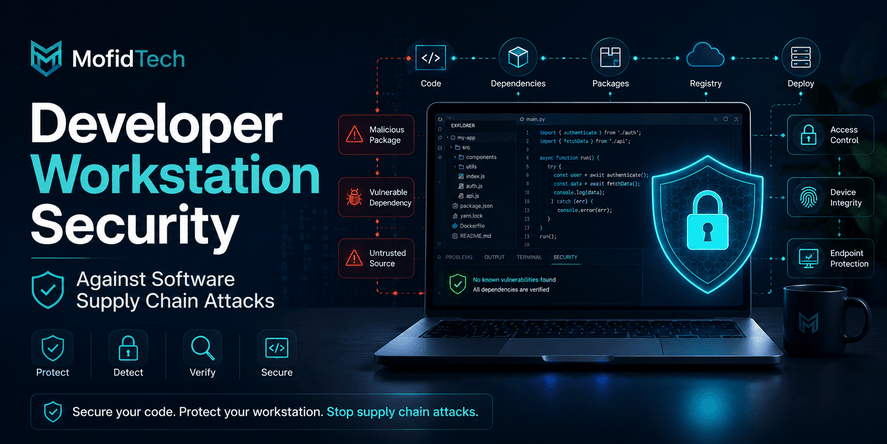
A developer workstation is no longer just a personal productivity machine. It is part of the software supply chain.
Modern developers use laptops and desktops that connect to source code repositories, package managers, cloud dashboards, local databases, container tools, secret managers, CI/CD systems, browser-based admin panels, AI coding assistants, and production monitoring platforms. This makes the developer workstation one of the most valuable targets in a modern engineering environment.
If an attacker compromises a developer’s machine, the damage may not stop at that device. The attacker may gain access to source code, credentials, SSH keys, personal access tokens, cloud accounts, internal dashboards, package publishing systems, or CI/CD workflows. From there, the attack can move from a single laptop to a repository, then to a build pipeline, then to users.
This is why developer workstation security must be treated as a core part of software supply chain security.
The risk is not theoretical. OWASP’s 2025 Top 10 includes software supply chain failures and highlights attacks where trusted components, vendors, packages, and developer environments become attack paths. OWASP also notes that modern supply chain attacks can target developer machines directly, making developers themselves prime targets.
NIST’s Secure Software Development Framework also emphasizes that secure software development practices should be integrated into the software development lifecycle, not added only at the end. Its goal is to reduce vulnerabilities, mitigate exploitation impact, and address root causes across the development process.
This guide explains how to secure developer workstations without blocking productivity. It focuses on practical controls, team policies, common mistakes, incident response, and the relationship between local developer machines and the broader software supply chain.
Table of Contents
- What Is Developer Workstation Security?
- Why Developer Workstations Are High-Value Targets
- How Developer Workstations Become Supply Chain Attack Paths
- The Modern Developer Workstation Attack Surface
- Developer Workstation Security Checklist
- How to Secure IDEs and Extensions
- How to Protect Developer Credentials and Secrets
- Browser Security for Developers
- AI Coding Tools and Developer Workstation Risk
- Local Development Environment Security
- Team-Level Policies for Secure Workstations
- Real-World Use Cases
- Common Mistakes to Avoid
- Security Considerations
- Performance and Productivity Considerations
- Troubleshooting Suspicious Workstation Activity
- Incident Response Checklist
- Best Practices Summary
- FAQ
- Conclusion
What Is Developer Workstation Security?
Developer workstation security is the practice of protecting the machines developers use to write, test, review, build, and manage software. It includes the operating system, IDE, extensions, browser, credentials, local project files, package managers, AI coding tools, and access to remote services.
A secure developer workstation reduces the chance that an attacker can use a developer’s machine to compromise source code, dependencies, CI/CD pipelines, cloud services, or production systems.
A developer workstation is different from a normal office computer because it often has privileged access to technical systems. A regular employee laptop may access email and documents. A developer laptop may access source code, deployment credentials, package publishing permissions, internal APIs, cloud resources, and production logs.
That difference matters.
A compromised developer workstation can become a bridge between an attacker and the software supply chain.
Why Is a Developer Workstation Part of the Software Supply Chain?
A software supply chain includes everything involved in producing, maintaining, building, testing, distributing, and deploying software. This includes source code, dependencies, tools, pipelines, build systems, repositories, container images, cloud services, and developer environments.
The developer workstation is part of this chain because it is where many important decisions and actions begin. Developers install packages, open repositories, review pull requests, authenticate to tools, create tokens, test integrations, run local services, and interact with CI/CD systems.
If the workstation is compromised, the attacker may not need to break into production directly. They can abuse the developer’s existing trust.
What Makes Developer Machines Different From Normal Endpoints?
Developer machines are different because they usually have:
- Access to private repositories
- Local copies of source code
- Saved authentication sessions
- Cloud management access
- Package manager credentials
- SSH keys or signing keys
- IDE extensions with broad permissions
- Browser sessions for admin dashboards
- AI coding tools that can read project context
- Local environment files and configuration values
- Ability to influence future builds and deployments
This combination makes the workstation both a productivity hub and a security boundary.
Why Developer Workstations Are High-Value Targets
Attackers target developer workstations because developers often sit close to the systems attackers want to reach.
A developer may have access to code repositories, production observability tools, cloud consoles, CI/CD pipelines, container registries, package registries, internal documentation, and deployment environments. Even when developers do not have direct production access, they often have enough access to influence code that later reaches production.
Developers Hold Valuable Credentials
Many development workflows depend on authentication. Developers may use access tokens, SSH keys, cloud credentials, package publishing tokens, API keys, local certificates, password managers, and single sign-on sessions.
GitHub documentation warns that personal access tokens should be treated like passwords and recommends fine-grained personal access tokens when possible because they provide more control than classic tokens.
This is important because a stolen token can be enough to read private code, open malicious changes, access package registries, or interact with automation systems.
Developer Tools Are Powerful by Design
IDEs and code editors are designed to automate work. They can read files, write files, run tools, communicate with external services, and integrate with repositories. Extensions make this even more powerful.
Visual Studio Code documentation states that extensions can introduce risks such as malicious code execution and data privacy concerns. It also explains that extensions run with broad permissions, including the ability to read and write files, make network requests, run external processes, and modify workspace settings.
That power is useful when the extension is trustworthy. It is dangerous when the extension is malicious, compromised, abandoned, or poorly maintained.
Developers Often Work With Untrusted Code
Developers frequently open code from public repositories, client projects, old internal projects, freelance work, tutorials, student projects, sample applications, and experimental packages.
Visual Studio Code’s Workspace Trust feature exists because unfamiliar project folders may execute code automatically through editor features, tasks, debugging, workspace settings, extensions, or AI agents. VS Code recommends leaving unfamiliar folders in Restricted Mode until they are reviewed.
This means workstation security must account for a simple reality: developers often need to inspect code before they fully trust it.
Development Speed Can Conflict With Security
Modern engineering culture values speed. Developers install tools quickly, test packages quickly, connect services quickly, and accept plugin suggestions quickly. That speed improves productivity, but it can also create blind spots.
A workstation security strategy must avoid two extremes:
| Extreme | Problem |
|---|---|
| Total freedom | Developers can install risky tools, leak credentials, and expose sensitive environments. |
| Total restriction | Developers lose productivity, bypass controls, or avoid security teams. |
The goal is not to make development slow. The goal is to make safe development the easiest path.
How Developer Workstations Become Supply Chain Attack Paths
A developer workstation becomes a supply chain attack path when an attacker uses the local environment to influence code, credentials, dependencies, builds, or deployments.
The path often looks like this:
- A developer installs a malicious or compromised tool.
- The tool gains access to local files, credentials, or sessions.
- The attacker steals tokens, keys, or repository access.
- The attacker modifies code, packages, workflows, or releases.
- The compromised artifact reaches other developers, customers, or production systems.
This pattern is dangerous because the attacker does not always need to exploit the final application. They can attack the process that produces the application.
Example: Compromised IDE Extension
In May 2026, Nx published a postmortem for a supply chain compromise involving a malicious Nx Console extension version. Nx stated that anyone who installed the affected version during the exposure window should treat their machine as compromised and rotate credentials. The postmortem also said the compromise originated from a contributor’s developer machine after a malicious package had previously exfiltrated credentials.
The GitHub advisory marked the compromised extension as critical, listed the affected version, and recommended rotating every credential reachable from the machine, including tokens, secrets, and SSH keys.
The lesson is clear: an IDE extension is not just a visual productivity add-on. It can become a supply chain entry point.
Example: Malicious Package Update
A package manager update can introduce malicious behavior if a dependency, maintainer account, publishing token, or package namespace is compromised.
Developers often trust packages because they are popular, familiar, or automatically suggested. But supply chain attacks exploit trust. Attackers may publish a malicious version of a package, compromise a maintainer, abuse a package name, or inject harmful behavior into an update that appears normal.
Example: Stolen Repository Credentials
If an attacker steals a developer’s repository credentials, they may attempt to:
- Read private source code
- Create malicious branches
- Modify workflow files
- Open suspicious pull requests
- Access release automation
- Harvest secrets from repository settings
- Abuse package publishing permissions
- Search for hardcoded credentials
Even limited repository access can be dangerous when combined with social engineering, weak review processes, or automated deployment triggers.
Example: Browser-Based Attack Path
Developers often access sensitive systems through the browser: cloud dashboards, admin panels, code hosting platforms, CI/CD tools, observability dashboards, password managers, documentation portals, and customer support tools.
A risky browser extension, compromised session, phishing page, or malicious OAuth authorization can expose sensitive access even if the operating system itself is not fully compromised.
The Modern Developer Workstation Attack Surface
A developer workstation is not one thing. It is a collection of tools, identities, local data, and connected services.
The main attack surfaces include:
| Area | Why It Matters | Example Risk |
|---|---|---|
| Operating system | Foundation of local security | Unpatched system allows malware persistence |
| IDE and extensions | Deep access to project files | Malicious extension reads credentials |
| Browser and plugins | Access to cloud and admin dashboards | Browser extension steals session data |
| Package managers | Dependency installation path | Compromised package steals tokens |
| Git tools | Repository authentication | Stolen token gives code access |
| Cloud tools | Access to infrastructure | Local credentials expose cloud resources |
| Password managers | Central credential store | Active sessions may be abused |
| AI coding tools | Project context and automation | Sensitive files enter tool context |
| Local secrets | Development credentials | Secrets are copied, synced, or exfiltrated |
| Local databases | Test or copied production data | Sensitive data stored without controls |
| CI/CD access | Build and deployment influence | Workflow modification leads to compromise |
Securing the workstation means reducing risk across all of these areas, not only installing antivirus software.
Developer Workstation Security Checklist
A strong developer workstation security checklist should cover device hardening, identity, credentials, IDEs, browser tools, local projects, dependencies, and incident response.
1. Harden the Operating System
The operating system is the base layer of workstation security. If it is weak, other controls become less reliable.
Important practices include:
- Keep the operating system updated.
- Enable full-disk encryption.
- Require a strong login password or passphrase.
- Use biometric login only as a convenience, not as the only protection.
- Enable automatic screen lock.
- Avoid using an administrator account for daily work when possible.
- Disable unnecessary services.
- Remove unused software.
- Use reputable endpoint protection where appropriate.
- Separate personal and professional use.
A developer machine should not be treated as a casual personal device if it has access to professional repositories, cloud accounts, or production systems.
2. Protect Authentication and Identity
Identity is often the most important security layer. Attackers want credentials because credentials let them act as trusted users.
Developers should use:
- Multi-factor authentication for code hosting, cloud, email, password managers, and CI/CD tools
- Hardware security keys for high-value accounts where possible
- Fine-grained tokens instead of broad tokens when supported
- Short-lived credentials when practical
- Separate accounts for personal and professional work
- Organization-level token approval policies
- Regular review of authorized applications and OAuth permissions
The goal is to reduce the damage if one credential is stolen.
3. Secure IDEs and Extensions
IDEs and extensions are high-value targets because they operate inside the developer workflow.
Developers should:
- Install extensions only from trusted publishers.
- Review the publisher, repository, license, support activity, and user feedback before installation.
- Avoid installing extensions that request broad functionality without a clear reason.
- Remove unused extensions.
- Review installed extensions regularly.
- Disable automatic trust for unfamiliar projects.
- Use organization-approved extension lists for teams.
- Treat unexpected extension updates as potential security events when they affect sensitive workstations.
Visual Studio Code documentation explains that Marketplace protections exist, including malware scanning, dynamic detection, verified publishers, unusual usage monitoring, block lists, signature verification, and secret scanning. However, the same documentation also makes clear that extensions have powerful runtime permissions.
Marketplace protection is useful, but it should not be the only defense.
4. Protect Local Secrets
Local secrets include tokens, passwords, private keys, environment values, local certificates, database credentials, cloud credentials, and service keys.
Developers should:
- Avoid storing long-lived secrets in project folders.
- Avoid copying production secrets into local environments.
- Use a dedicated password manager or secret manager.
- Prefer short-lived credentials where possible.
- Keep secrets out of synced folders and shared drives.
- Separate development credentials from production credentials.
- Rotate secrets after suspicious activity.
- Review local projects for accidentally saved secrets.
- Avoid sharing screenshots that reveal credentials, project names, or internal URLs.
A secure workstation assumes that local secrets are sensitive even if they are “only for development.”
5. Secure the Browser
The browser is a major part of the developer workstation. Many development tools are now web-based.
Developers should:
- Use a separate browser profile for work.
- Limit browser extensions to essential, trusted tools.
- Remove old or unused browser plugins.
- Review OAuth applications connected to work accounts.
- Avoid staying logged in to sensitive consoles on personal profiles.
- Use phishing-resistant MFA for important accounts.
- Avoid mixing client, freelance, personal, and employer sessions in the same browser profile.
- Clear sessions after working on untrusted or client-provided environments.
A secure browser setup can reduce the chance that a compromised personal extension or session affects professional systems.
6. Manage Package Manager Risk
Package managers are central to modern development, but they can also introduce untrusted code.
Developers and teams should:
- Prefer established packages with active maintenance.
- Review package ownership and recent changes.
- Be cautious with newly published packages.
- Watch for typosquatting and similar package names.
- Use dependency scanning tools.
- Review major updates before adoption.
- Avoid installing packages globally unless necessary.
- Maintain lockfiles and dependency inventories.
- Monitor advisories for critical dependencies.
- Understand who has permission to publish internal packages.
SLSA describes software supply chain security as a set of standards and controls that help prevent tampering, improve integrity, and secure packages and infrastructure.
Developer workstation security complements frameworks like SLSA by protecting the human and local-tooling side of the chain.
7. Separate Trusted and Untrusted Work
Developers often work on multiple projects with different trust levels.
Good separation practices include:
- Use separate folders or environments for client work, personal experiments, and company work.
- Open unknown repositories in restricted or isolated mode first.
- Avoid using the same credentials across unrelated projects.
- Avoid testing unknown tools inside sensitive workspaces.
- Use disposable or isolated environments for risky analysis.
- Do not open suspicious projects while logged in to highly privileged accounts.
This reduces the risk that an untrusted project can access sensitive sessions, files, or credentials.
8. Monitor and Review Workstation State
Security is not only prevention. It is also visibility.
Teams should periodically review:
- Installed IDE extensions
- Browser extensions
- Local authentication tools
- Active tokens and sessions
- Authorized OAuth applications
- Local administrator rights
- Installed package managers and global packages
- Endpoint security status
- Device encryption status
- Operating system update status
- Unusual background processes
- Unexpected network activity
- Suspicious repository or workflow changes
For small teams, even a monthly review is better than having no visibility at all.
How to Secure IDEs and Extensions
IDEs are productivity platforms. They are also security-sensitive platforms.
An IDE extension can be useful, but it can also read source code, interact with project files, connect to external services, and influence developer behavior. That makes extension security one of the most important parts of developer workstation security.
What Should Developers Check Before Installing an Extension?
Before installing an IDE extension, developers should ask:
- Is the publisher known and trustworthy?
- Is the extension actively maintained?
- Does the extension have a public repository?
- Does the extension have a clear license?
- Does the extension have a professional support history?
- Are the reviews consistent and credible?
- Has the publisher verified its identity?
- Does the extension need the level of access it appears to use?
- Is there an official alternative?
- Is this extension required for work, or only convenient?
- Has the extension recently changed ownership?
- Does the extension communicate with external services?
- Does it handle source code, secrets, or credentials?
The more sensitive the project, the stricter the evaluation should be.
Why Extension Popularity Is Not Enough
Many developers trust extensions because they have many downloads. Popularity is useful, but it is not a guarantee of safety.
A popular extension can become risky if:
- The maintainer account is compromised
- The package publishing process is weak
- Ownership changes
- A dependency becomes malicious
- The extension adds unexpected behavior
- Auto-update installs a compromised version
- The publisher stops maintaining the extension
- A similarly named fake extension appears
Security decisions should consider popularity, but they should also consider publisher trust, maintenance quality, permissions, behavior, and organizational need.
Should Teams Use an Approved Extension List?
For professional teams, an approved extension list is often a good idea.
An approved list does not need to be heavy or bureaucratic. It can be a simple internal catalog that identifies:
- Required extensions
- Recommended extensions
- Allowed optional extensions
- Blocked extensions
- Extensions requiring security review
- Extension owners inside the team
- Review dates
- Reasons for approval
This helps teams balance security and productivity. Developers know what they can install, and security teams know what is running across workstations.
How Often Should Extensions Be Reviewed?
Extension review should happen:
- When onboarding a new developer
- Before starting sensitive client work
- Before major releases
- After suspicious activity
- When an extension changes ownership
- When an extension adds new capabilities
- When a security advisory appears
- At least periodically for professional environments
A quarterly review is a reasonable baseline for many small teams. High-risk teams may need more frequent checks.
How to Protect Developer Credentials and Secrets
Credentials are often the most valuable data on a developer workstation.
Attackers may search for repository tokens, cloud keys, SSH keys, package publishing credentials, API keys, database passwords, password manager sessions, and local configuration values.
What Counts as a Developer Secret?
A developer secret can include:
- Git hosting tokens
- SSH keys
- Cloud provider credentials
- Package registry tokens
- Database credentials
- API keys
- OAuth client secrets
- Local certificates
- Encryption keys
- Webhook secrets
- Session cookies
- Password manager export files
- Recovery codes
- Deployment credentials
- Monitoring platform tokens
A secret is any value that allows access, authentication, signing, encryption, deployment, or privileged action.
Why Local Secrets Are Dangerous
Local secrets are dangerous because they are often:
- Long-lived
- Overprivileged
- Stored in predictable locations
- Copied between projects
- Accidentally committed
- Included in backups
- Synced to personal cloud storage
- Exposed to IDE extensions
- Visible to local malware
- Forgotten after a project ends
The best secret is one that is not stored locally. The next best secret is short-lived, limited, encrypted, and easy to rotate.
How Developers Should Handle Secrets
Developers should follow these principles:
- Use the minimum permission required.
- Prefer fine-grained access over broad access.
- Avoid long-lived tokens for daily work.
- Use separate credentials for development, staging, and production.
- Never reuse personal tokens across clients or organizations.
- Store secrets in approved secure tools.
- Rotate secrets when they are no longer needed.
- Remove old tokens after leaving a project.
- Review authorized applications regularly.
- Avoid placing secrets in project notes, screenshots, chat messages, or local documents.
What Should Be Rotated After a Suspected Compromise?
After a suspected developer workstation compromise, rotate or revoke:
- Repository tokens
- SSH keys
- Cloud credentials
- Package registry tokens
- Deployment credentials
- CI/CD secrets accessible from the account
- API keys used in local projects
- Password manager sessions if exposed
- OAuth app grants
- Browser sessions for sensitive platforms
- Local certificates
- Database credentials used from the machine
The Nx Console advisory recommended rotating every credential reachable from an affected machine, including tokens, secrets, and SSH keys.
That is a strong principle: if a compromised machine could access it, treat it as exposed.
Browser Security for Developers
Developer workstation security is incomplete without browser security.
Many sensitive engineering actions happen in the browser: reviewing pull requests, approving deployments, changing cloud settings, managing DNS, accessing admin dashboards, reading logs, connecting OAuth apps, and using AI tools.
Use Separate Browser Profiles
A practical approach is to use separate browser profiles for:
- Work
- Personal browsing
- Client projects
- Testing
- High-privilege admin tasks
This separation helps prevent personal extensions, personal sessions, and casual browsing from interacting with professional systems.
Limit Browser Extensions
Browser extensions can read web pages, modify content, track behavior, or interact with sessions depending on their permissions.
Developers should keep browser extensions minimal. Useful questions include:
- Do I really need this extension?
- Does it run on every website?
- Can it read page content?
- Can it modify requests?
- Is it maintained by a trusted publisher?
- Is it necessary in my work profile?
- Could it access code hosting or cloud dashboards?
The safest browser extension is the one you do not install.
Review OAuth Applications
Developers often authorize third-party tools to access code hosting, cloud services, documentation, communication tools, and productivity platforms.
Review OAuth access regularly and remove applications that are:
- No longer used
- Created by unknown publishers
- Too broad in permissions
- Connected for old experiments
- Related to abandoned projects
- Used once for testing
OAuth grants can be forgotten, but attackers do not forget them.
Protect Admin Sessions
Administrative dashboards should not be treated like normal websites.
For cloud accounts, code hosting organizations, deployment platforms, registrars, DNS providers, monitoring tools, and payment systems:
- Use MFA.
- Avoid staying logged in unnecessarily.
- Use dedicated browser profiles.
- Avoid installing nonessential extensions in admin profiles.
- Review active sessions.
- Log out from shared or temporary machines.
- Avoid accessing sensitive dashboards while working with untrusted code.
AI Coding Tools and Developer Workstation Risk
AI coding tools can improve productivity, but they also change the security model of the developer workstation.
AI assistants may read project context, suggest changes, interact with files, call external services, summarize code, or perform agentic actions depending on the tool and configuration.
Visual Studio Code documentation notes that AI-powered development features can perform actions on behalf of the user, including making codebase changes, running terminal actions, or invoking web requests. It also warns that files could be pulled into context and may create prompt injection risk.
Are AI Coding Tools a Security Risk?
AI coding tools are not automatically unsafe, but they introduce risks that teams must manage.
Risks include:
- Sensitive code entering external tool context
- Secrets included in prompts
- Internal architecture being exposed
- AI agents acting on untrusted instructions
- Prompt injection from project files
- Suggested insecure patterns
- Over-trusting generated code
- Tool plugins receiving broad access
- Confusion about where data is processed
- Lack of logging for AI-assisted actions
The key is not to ban AI tools blindly. The key is to define safe usage boundaries.
Safe AI Coding Tool Practices
Developers should:
- Avoid pasting secrets into AI tools.
- Avoid including production credentials in AI context.
- Review generated changes carefully.
- Use approved AI tools for professional projects.
- Understand whether data is retained or used for training.
- Disable agentic actions in untrusted workspaces.
- Avoid letting AI tools operate on unknown repositories without review.
- Treat AI-generated code as untrusted until reviewed.
- Keep sensitive client work within approved environments.
- Document AI tool usage policies for teams.
AI Agents Need Stronger Boundaries
Traditional autocomplete is one thing. Agentic development tools are different because they may plan actions, modify files, inspect context, call tools, or interact with services.
For agentic tools, teams should define:
- Which projects can use agents
- Which files agents can access
- Whether agents can make changes automatically
- Whether agents can interact with external services
- Whether agents can use project secrets
- How developers review agent-created changes
- How tool activity is logged
- How sensitive data is excluded from context
AI coding tools should be treated as part of the development environment, not as harmless text boxes.
Local Development Environment Security
Local development environments often contain more sensitive data than teams realize.
A developer may have local databases, sample customer records, old backups, private configuration values, test credentials, API keys, and internal documentation. Even when these are not production systems, they can still expose business or user data.
Avoid Using Real Production Data Locally
Production data should not be copied to developer machines unless there is a clear business need and strong protection.
Safer alternatives include:
- Synthetic data
- Anonymized data
- Reduced datasets
- Masked datasets
- Dedicated test accounts
- Internal demo data
- Controlled staging data
If production-like data is required, define who can access it, how it is protected, how long it is retained, and how it is deleted.
Separate Projects by Trust Level
A secure local environment separates sensitive professional projects from experimental or unknown projects.
For example:
| Project Type | Recommended Handling |
|---|---|
| Company production project | Use approved tools, strict secrets handling, trusted extensions |
| Client project | Separate credentials, separate browser profile, clear data boundaries |
| Open-source contribution | Review before trusting, avoid mixing with privileged sessions |
| Unknown repository | Open in restricted or isolated mode first |
| Personal experiment | Keep separate from professional credentials |
Trust boundaries should be visible in daily development habits.
Reduce Local Privilege
Developers often run tools with more privilege than necessary. This increases risk when a package, extension, or script behaves maliciously.
A safer approach is to:
- Use least privilege for daily development.
- Avoid granting administrative rights unless needed.
- Separate local admin tasks from coding tasks.
- Avoid storing high-privilege cloud credentials locally.
- Use temporary elevation when required.
- Avoid giving experimental tools access to sensitive directories.
Least privilege is not only a server-side principle. It applies to developer workstations too.
Keep Local Tools Updated
Outdated local tools can expose vulnerabilities.
Developers should keep updated:
- Operating system
- Browser
- IDE
- Security tools
- Package managers
- Language runtimes
- Local database tools
- Container tools
- Cloud tools
- Password managers
- Git clients
- Communication tools
However, automatic updates must be balanced with supply chain risk. For high-risk tools, teams may want a delay, approval process, or staged rollout.
Team-Level Policies for Secure Workstations
Security cannot depend only on individual developer discipline. Teams need simple, enforceable policies.
Minimum Security Baseline
Every developer workstation should meet a baseline such as:
- Device encryption enabled
- Strong authentication enabled
- MFA enabled for core services
- Operating system supported and updated
- Endpoint protection active where appropriate
- No unsupported operating systems for professional work
- Work browser profile separated from personal browsing
- Approved password manager used
- Local secrets handled according to policy
- IDE extensions reviewed or approved
- Lost device process documented
- Offboarding process includes credential revocation
This baseline should be simple enough that every developer understands it.
Tool Approval Policy
A good tool approval policy answers:
- Which IDEs are approved?
- Which extensions are required?
- Which extensions are allowed?
- Which browser extensions are banned?
- Which AI coding tools are approved?
- Which package managers are allowed?
- Which local database tools are allowed?
- Who reviews new tools?
- How often are tools reviewed?
- What happens when a tool is compromised?
The goal is to prevent random tool sprawl without slowing down legitimate work.
Credential Policy
A strong credential policy should define:
- When to use fine-grained tokens
- When personal tokens are not allowed
- Maximum lifetime for tokens
- When hardware keys are required
- How secrets are stored
- When credentials must be rotated
- How to handle compromised machines
- How offboarding revokes access
- How to audit active tokens and OAuth apps
Developers should not need to guess how to handle credentials.
Incident Reporting Policy
Developers must feel safe reporting suspicious activity.
The policy should make it clear that developers should report:
- Unexpected extension updates
- Unknown processes
- Strange repository activity
- Unexpected login alerts
- Suspicious browser behavior
- Missing files
- Unusual network activity
- Secret exposure
- Lost or stolen devices
- Accidental installation of risky tools
A fast report can prevent a small compromise from becoming a supply chain incident.
Real-World Use Cases
Use Case 1: Small SaaS Team
A small SaaS team has five developers, one production cloud account, one code hosting organization, and several freelance contributors.
The biggest risks are broad repository access, weak token management, uncontrolled extensions, and shared production credentials.
Recommended approach:
- Require MFA for all code hosting and cloud accounts.
- Use fine-grained access where possible.
- Create separate accounts for freelancers.
- Approve a small list of IDE extensions.
- Avoid sharing production credentials with all developers.
- Use staged access for deployment tasks.
- Review OAuth applications monthly.
- Rotate credentials when a freelancer leaves.
- Keep a simple workstation security checklist in onboarding.
This team does not need enterprise complexity. It needs discipline and visibility.
Use Case 2: Agency Working With Multiple Clients
A development agency may handle several client projects with different technologies and access levels.
The biggest risk is cross-client contamination: one client’s tool, credentials, or compromised repository affecting another client.
Recommended approach:
- Use separate browser profiles per client.
- Use separate repository access per client.
- Do not reuse tokens across clients.
- Isolate risky client repositories before trusting them.
- Document client-specific tools.
- Remove access immediately after project completion.
- Avoid storing client secrets in general agency notes.
- Review local machines before switching from one sensitive client to another.
For agencies, separation is the most important principle.
Use Case 3: Open-Source Maintainer
An open-source maintainer may have package publishing permissions, repository admin rights, and community trust.
The biggest risks are stolen publishing credentials, compromised maintainer accounts, and malicious pull requests.
Recommended approach:
- Use hardware security keys for maintainer accounts.
- Use least privilege for package publishing.
- Require multiple maintainers for sensitive releases.
- Review dependency updates carefully.
- Protect package registry access.
- Avoid opening unknown contributor projects in trusted environments.
- Monitor package publishing activity.
- Document emergency unpublish and credential rotation procedures.
Open-source maintainers are part of many downstream supply chains, so their workstation security affects more than one project.
Use Case 4: Enterprise Development Team
A larger enterprise team may have hundreds of developers, multiple repositories, cloud platforms, internal packages, and regulated data.
The biggest risks are unmanaged tool sprawl, inconsistent endpoint security, long-lived credentials, and lack of visibility.
Recommended approach:
- Define a standard developer workstation baseline.
- Use device management.
- Enforce disk encryption and endpoint protection.
- Maintain approved IDE and extension policies.
- Use centralized secrets management.
- Apply least privilege to repositories and cloud accounts.
- Monitor high-risk authentication events.
- Require security review for package publishing.
- Create incident response playbooks for compromised workstations.
- Train developers on supply chain attack paths.
Enterprise controls should be strong but still developer-friendly.
Common Mistakes to Avoid
Mistake 1: Treating the Developer Laptop Like a Normal Laptop
A developer laptop is not just an office device. It may contain code, credentials, keys, local databases, admin sessions, and deployment access.
Treat it as a sensitive engineering asset.
Mistake 2: Trusting IDE Extensions Blindly
Extensions can be powerful. Some can read files, change workspace behavior, make network requests, and interact with local tools.
Only install extensions that have a clear purpose and trustworthy publisher.
Mistake 3: Keeping Long-Lived Tokens Locally
Long-lived tokens are attractive to attackers because they remain useful after theft.
Use short-lived or fine-grained credentials where possible.
Mistake 4: Mixing Personal and Professional Browser Sessions
Using one browser profile for everything increases risk. A personal extension or casual browsing session should not share space with cloud admin dashboards and code hosting accounts.
Mistake 5: Opening Unknown Repositories in Fully Trusted Mode
Unknown repositories can contain malicious project settings, automation hooks, or instructions designed to trigger tool behavior.
Open unfamiliar projects with restricted trust first.
Mistake 6: Giving Every Developer Production-Level Access
Not every developer needs production access. Not every developer needs package publishing permissions. Not every developer needs repository admin rights.
Least privilege reduces blast radius.
Mistake 7: Ignoring AI Tool Boundaries
AI tools can read, summarize, and act on project context. Without policy, sensitive data may enter places it should not.
Teams should define approved AI tools and safe usage rules.
Mistake 8: No Credential Rotation Plan
When a workstation is compromised, teams often waste time deciding what to rotate.
A clear rotation priority list should already exist.
Mistake 9: Not Reviewing OAuth Applications
OAuth applications can retain access long after a developer forgets about them.
Review and remove unused grants regularly.
Mistake 10: Security Policies That Developers Cannot Follow
If security rules are too complex, developers will work around them. Security controls must fit the real development workflow.
Security Considerations
Least Privilege
Least privilege means giving developers and tools only the access required for their work.
Apply least privilege to:
- Repository permissions
- Cloud accounts
- Package publishing
- Local administrator rights
- CI/CD workflows
- Secrets access
- Browser sessions
- AI tool permissions
- IDE extensions
- Client environments
The fewer privileges a compromised workstation has, the less damage an attacker can do.
Defense in Depth
No single control is enough.
A secure developer workstation should combine:
- Device encryption
- Strong identity controls
- MFA
- Trusted extensions
- Local secrets protection
- Browser separation
- Dependency review
- Endpoint monitoring
- Restricted mode for untrusted code
- Credential rotation
- Incident response procedures
When one layer fails, another layer should reduce the impact.
Secure Defaults
Developers should not have to manually choose security every time.
Secure defaults include:
- MFA enabled by default
- Device encryption enabled by default
- Restricted mode for unknown folders
- Approved extension lists
- Short-lived credentials
- Limited repository permissions
- No production secrets in local projects
- Separate browser profiles for admin work
- Default denial for unknown OAuth apps
Secure defaults are more reliable than reminders.
Auditing and Visibility
Teams need visibility into high-risk areas:
- Who has repository access?
- Which tokens exist?
- Which apps are authorized?
- Which extensions are installed?
- Which devices access source code?
- Which users have package publishing rights?
- Which credentials are long-lived?
- Which machines access production tools?
Visibility should support security, not surveillance. The goal is to protect the software supply chain.
Performance and Productivity Considerations
Security controls should not make development unnecessarily slow.
A good workstation security program should improve confidence without creating constant friction.
Avoid Heavy Manual Approval for Every Tool
Manual approval for every extension, package, or tool can frustrate developers. Instead, use risk-based approval.
For example:
| Tool Type | Suggested Review Level |
|---|---|
| Popular official extension from trusted publisher | Lightweight review |
| Extension handling credentials or cloud access | Security review |
| New extension with low reputation | Deeper review |
| Internal package used in production | Maintainer review |
| Experimental personal tool | Isolated environment |
| AI agent with file modification ability | Policy review |
The review process should match the risk.
Use Pre-Approved Toolkits
Teams can maintain recommended developer setups for common stacks. This reduces random tool installation and improves onboarding.
A pre-approved toolkit may include:
- Approved IDE
- Approved extensions
- Approved browser profile setup
- Approved password manager
- Approved local database tools
- Approved package manager settings
- Approved AI coding tools
- Approved monitoring or debugging tools
This makes the secure path convenient.
Do Not Break Developer Autonomy Completely
Developers need flexibility. Security teams should avoid unnecessary blocking and instead provide:
- Clear rules
- Fast review processes
- Trusted alternatives
- Documentation
- Self-service checklists
- Risk explanations
- Escalation paths
Good security feels like engineering support, not punishment.
Troubleshooting Suspicious Workstation Activity
Developers should know how to recognize suspicious workstation behavior.
Warning Signs
Possible warning signs include:
- Unknown IDE extension installed
- Extension updated unexpectedly
- Browser redirects or strange login prompts
- Unexpected repository changes
- Unusual authentication emails
- New OAuth application grants
- Unknown background processes
- High network activity without explanation
- Changed workspace settings
- Unknown files appearing in project folders
- Security tool alerts
- Password manager session behaving unexpectedly
- New cloud access logs from unfamiliar locations
- Package manager activity the developer did not initiate
One warning sign does not always mean compromise, but it should trigger careful review.
First Actions
When suspicious activity appears, the developer should:
- Stop using the machine for sensitive work.
- Disconnect from sensitive accounts where appropriate.
- Inform the security or engineering lead.
- Preserve useful evidence when possible.
- Avoid deleting everything before someone reviews the situation.
- Use a separate trusted device to rotate critical credentials.
- Review recent repository and cloud activity.
- Identify what secrets or sessions were reachable.
- Decide whether the machine should be rebuilt.
The most important rule is: do not continue normal development on a machine that may be compromised.
When Should a Machine Be Rebuilt?
A rebuild should be strongly considered when:
- Malware is confirmed.
- A malicious IDE extension executed.
- Credentials were exfiltrated.
- Persistence behavior is suspected.
- Unknown privileged processes are found.
- The machine handled production access.
- Forensic confidence is low.
- The compromise timeline is unclear.
For serious compromises, cleaning individual files may not be enough. A trusted rebuild is often safer.
Incident Response Checklist for a Compromised Developer Workstation
Use this checklist when a developer workstation may be compromised.
Phase 1: Contain
- Stop sensitive work on the machine.
- Disconnect active sessions where appropriate.
- Notify the responsible security or engineering lead.
- Prevent the machine from accessing sensitive systems.
- Avoid using the compromised machine to rotate credentials.
- Preserve evidence if investigation is needed.
Phase 2: Identify Exposure
Determine what the machine could access:
- Code repositories
- Cloud accounts
- CI/CD systems
- Package registries
- Password managers
- Local secrets
- SSH keys
- API keys
- Database credentials
- Client environments
- Production systems
- Browser sessions
- OAuth grants
- AI coding tool context
Phase 3: Rotate and Revoke
Rotate or revoke:
- Repository tokens
- Cloud credentials
- SSH keys
- Package publishing tokens
- API keys
- Deployment credentials
- CI/CD secrets
- OAuth app permissions
- Password manager sessions if needed
- Local certificates
- Any credential reachable from the machine
Phase 4: Audit Activity
Review:
- Repository commits
- Pull requests
- Workflow changes
- Package publications
- Cloud access logs
- CI/CD runs
- New tokens
- New OAuth grants
- Admin actions
- Suspicious file changes
- Unusual login locations
Phase 5: Recover
- Rebuild or clean the machine based on severity.
- Reinstall only trusted tools.
- Restore from known-good sources.
- Reapply security baseline.
- Verify extensions and browser plugins.
- Reconnect accounts with fresh credentials.
- Document the incident.
- Update policies to prevent recurrence.
Developer Workstation Security Comparison Table
| Security Area | Weak Practice | Better Practice | Best Practice |
|---|---|---|---|
| IDE extensions | Install anything useful | Install trusted extensions only | Use approved extension catalog and periodic review |
| Credentials | Long-lived broad tokens | Fine-grained limited tokens | Short-lived, least-privilege, centrally managed credentials |
| Browser | One profile for everything | Separate work and personal profiles | Dedicated profiles for admin, client, and sensitive work |
| Unknown code | Open normally | Review before running | Open in restricted or isolated mode first |
| AI tools | Use any tool with any project | Use approved tools | Define data, agent, and context boundaries |
| Local data | Copy production data locally | Use reduced test data | Use synthetic or masked data with retention rules |
| Access control | Everyone has broad access | Role-based access | Least privilege with regular review |
| Incident response | Decide during crisis | Basic checklist | Tested playbook with rotation priorities |
Best Practices Summary
A secure developer workstation should follow these principles:
- Treat the workstation as part of the software supply chain.
- Protect credentials as high-value assets.
- Use MFA and phishing-resistant authentication where possible.
- Prefer fine-grained and short-lived access.
- Install only trusted IDE and browser extensions.
- Review extensions regularly.
- Use restricted mode for unfamiliar code.
- Keep work and personal browsing separate.
- Avoid storing production secrets locally.
- Use approved AI coding tools with clear boundaries.
- Separate client, personal, and company projects.
- Monitor installed tools and authorized applications.
- Rotate credentials after suspicious activity.
- Rebuild compromised machines when trust is lost.
- Make security controls practical for developers.
FAQ
What is developer workstation security?
Developer workstation security is the practice of protecting the machines developers use to write, test, review, and manage software. It includes securing the operating system, IDE, extensions, browser, credentials, local project files, package tools, AI coding assistants, and access to remote engineering services.
Why are developer workstations important for software supply chain security?
Developer workstations are important because they often connect directly to source code, package managers, CI/CD systems, cloud services, and production-related tools. If a workstation is compromised, an attacker may use the developer’s trusted access to compromise code, dependencies, workflows, or releases.
Can a VS Code extension steal credentials?
A malicious or compromised extension may be able to access sensitive files or interact with the local environment depending on its capabilities. VS Code documentation explains that extensions run with broad permissions and can read and write files, make network requests, run external processes, and modify workspace settings.
Should developers disable all IDE extensions?
No. Extensions are useful and often necessary. The better approach is to install only trusted extensions, review publishers, remove unused extensions, avoid unnecessary permissions, and use approved extension lists for professional teams.
Are browser extensions dangerous for developers?
Browser extensions can be risky when they have broad permissions or access to sensitive web sessions. Developers often use browsers for code hosting, cloud dashboards, CI/CD tools, and admin panels, so browser extension security is part of developer workstation security.
How should developers protect local secrets?
Developers should avoid storing long-lived secrets locally, use approved password managers or secret managers, separate development and production credentials, prefer fine-grained access, rotate unused credentials, and never place secrets in project folders, notes, screenshots, or shared files.
Are AI coding tools a security risk?
AI coding tools can be safe when used with clear boundaries, but they can introduce risk if they access sensitive code, secrets, internal architecture, or untrusted project instructions. Agentic AI tools need stronger controls because they may act on behalf of the developer.
What should I do if my developer machine is compromised?
Stop using the machine for sensitive work, notify the responsible team, identify what credentials and systems were reachable, rotate or revoke exposed credentials from a trusted device, audit repository and cloud activity, and consider rebuilding the machine from a trusted source.
Should small teams care about developer workstation security?
Yes. Small teams often have fewer layers of defense, and developers may have broad access to repositories, cloud accounts, and deployment systems. A simple checklist covering MFA, extension review, secrets management, browser separation, and credential rotation can significantly reduce risk.
How often should developer workstations be reviewed?
A basic review should happen during onboarding, offboarding, major project changes, and after suspicious activity. Teams should also review extensions, tokens, OAuth applications, and device security periodically, such as monthly or quarterly depending on risk.
What is the best first step for improving developer workstation security?
The best first step is to inventory the most sensitive access developers have: repositories, tokens, cloud accounts, package registries, CI/CD systems, browser sessions, and local secrets. Once the team knows what is exposed, it can reduce permissions, rotate risky credentials, and secure the most important tools first.
How does developer workstation security support DevSecOps?
DevSecOps means integrating security into the development process. Developer workstation security supports DevSecOps by protecting the environment where code is written, reviewed, tested, and prepared for delivery. It shifts security earlier without waiting until CI/CD or production.
Conclusion
Developer workstation security is now a core part of software supply chain security.
A modern developer machine is connected to source code, cloud platforms, package managers, CI/CD systems, secrets, browser sessions, and AI coding tools. That makes it powerful, but also risky. If attackers compromise the workstation, they may gain a path into the systems that produce and deploy software.
The solution is not to slow developers down or ban every useful tool. The solution is to define a secure development baseline: trusted extensions, protected credentials, separated browser profiles, careful handling of local secrets, restricted mode for unfamiliar code, approved AI tool usage, least privilege access, and a clear incident response plan.
For individual developers, this means treating the workstation as a professional security boundary. For teams, it means making secure development the default workflow.
A secure developer workstation protects more than one laptop. It protects repositories, builds, deployments, customers, and the trustworthiness of the entire software delivery process.





💬 Comments
No comments yet. Be the first to comment!
Login to comment.