Introduction
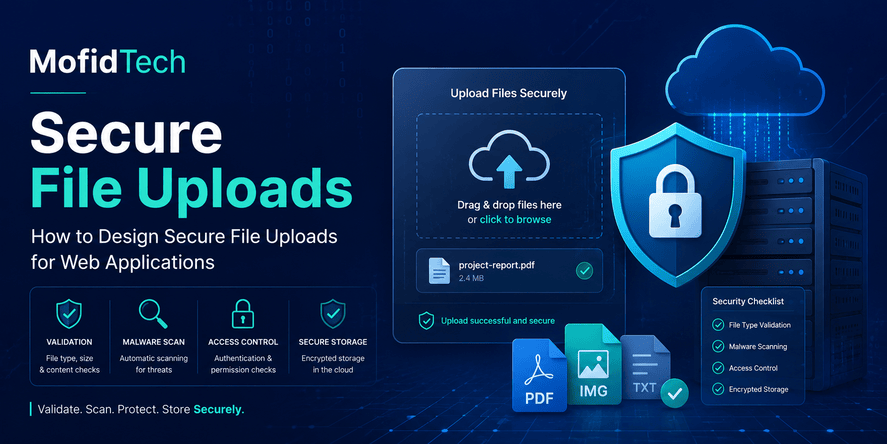
File upload is one of the most common features in modern web applications. Users upload profile pictures, documents, invoices, PDFs, certificates, images, spreadsheets, reports, identity documents, audio files, videos, and many other types of content. For a developer, the feature may look simple: the user selects a file, submits it, and the application stores it somewhere.
In reality, file upload is one of the most sensitive parts of a web application. A file is not only data. It can contain malicious content, hidden metadata, oversized payloads, misleading names, unexpected formats, or content that should never become public. A weak upload feature can expose private files, consume server resources, bypass access control, damage user trust, or even become an entry point for serious compromise.
OWASP treats uploaded files as a significant application risk and recommends layered controls such as allowlisted extensions, file type validation, filename changes, size limits, storage restrictions, and authorization checks. OWASP also explains that unrestricted file upload can help attackers place dangerous content on a system, especially when the uploaded content can later be executed or served unsafely. PortSwigger describes file upload vulnerabilities as a potential vector for high-severity attacks, including cases where attackers attempt to upload web shells or dangerous server-side content.
This article explains how to design secure file uploads for web applications without focusing on copy-paste code. Instead, it focuses on architecture, validation logic, storage decisions, access control, security review, performance, privacy, user experience, and common mistakes.
By the end, you will understand how to think about file uploads as a complete security workflow, not just as a form field.
Table of Contents
- What Is a Secure File Upload System?
- Why File Uploads Are Risky
- Common File Upload Vulnerabilities
- Secure File Upload Architecture
- File Validation Best Practices
- Access Control for Uploaded Files
- Secure Storage Design
- Malware Scanning and File Processing
- Privacy and Compliance Considerations
- Performance and Reliability Considerations
- User Experience Best Practices
- Real-World File Upload Use Cases
- Common Mistakes to Avoid
- Secure File Upload Checklist
- Troubleshooting File Upload Problems
- Comparison Tables
- FAQ
- Conclusion
What Is a Secure File Upload System?
A secure file upload system is a controlled workflow that accepts files from users only when the file, user, context, storage location, and access rules are safe enough for the application’s purpose.
A secure upload system does not simply ask, “Did the user send a file?” It asks several deeper questions:
- Is this user allowed to upload this type of file?
- Is this file type actually needed for the business feature?
- Is the file extension allowed?
- Does the file content match the expected type?
- Is the file too large?
- Is the file name safe?
- Could the file contain malware?
- Where will the file be stored?
- Who can access it later?
- Can the file be executed by the server?
- Can the file expose private information?
- What happens if the file must be deleted later?
- How will suspicious upload behavior be detected?
A secure file upload system is therefore not one control. It is a chain of controls. If one control fails, another control should reduce the damage.
The Difference Between Accepting a File and Trusting a File
Accepting a file means the application receives it from the user.
Trusting a file means the application treats it as safe, displays it, processes it, stores it permanently, or makes it available to other users.
A common security mistake is to treat acceptance as trust. A user-selected file should always be considered untrusted until the application has validated it, stored it safely, and applied proper access rules.
For example, an application may accept a profile image. But before displaying that image publicly, it should verify that the file is really an acceptable image, that it respects size limits, that it does not contain dangerous content, and that it is served in a way that cannot execute code.
Why Secure File Uploads Require Design, Not Only Validation
Many developers think file upload security is only about checking the file extension. That is not enough.
A secure design must consider the full lifecycle of the uploaded file:
- The upload request
- The authenticated user
- The expected business purpose
- The temporary handling step
- The validation process
- The malware or content inspection process
- The final storage decision
- The metadata saved in the database
- The access control rules for download or preview
- The deletion, retention, and audit process
If a file upload feature is designed without this lifecycle, security gaps usually appear later. For example, a file may be validated at upload time but served publicly later. Or a file may be private in the database but stored in a public cloud bucket. Or a file may be safe as an upload but dangerous when converted, previewed, indexed, or opened by an internal employee.
Why File Uploads Are Risky
File uploads are risky because they allow external users to introduce content into your application environment. That content may later interact with your server, your storage, your database, your administrators, your other users, your CDN, your image processing tools, your document preview system, or your backup system.
The risk depends on the type of application. A blog that allows only author images has a different risk profile from a legal platform that stores confidential contracts or a medical system that stores patient documents. But all upload features need a minimum security baseline.
Files Can Be Misleading
A file can look harmless while hiding unexpected content.
A file name may suggest one format, but the actual content may be different. A file extension can be renamed. A MIME type sent by the browser can be spoofed. A file may include metadata that exposes information. An image may be extremely large and consume server resources when processed. A compressed archive may expand into a much larger set of files than expected.
That is why secure systems avoid trusting a single signal. They combine several checks.
Files Can Affect Confidentiality
A file upload feature can leak sensitive information if access control is weak. For example, if uploaded files are stored in a public directory or served through predictable URLs, users may be able to access files that do not belong to them.
This is especially serious for applications that handle identity documents, contracts, school records, invoices, legal case files, medical records, or internal company files.
OWASP lists broken access control as a major security category, explaining that access control failures can lead to unauthorized disclosure, modification, destruction of data, or execution of business functions outside a user’s intended permissions. File upload systems are directly connected to this risk because every uploaded file has an owner, a visibility level, and a set of permitted actions.
Files Can Affect Integrity
Uploaded files can be used to overwrite existing content, manipulate file paths, confuse processing tools, or replace trusted assets if filenames and storage paths are not controlled.
For example, if the application uses the original user-provided filename without enough control, different users may upload files with the same name. If storage paths are poorly designed, files may be overwritten or placed in unexpected locations.
Files Can Affect Availability
File upload features can damage availability when attackers or careless users upload very large files, upload too many files, upload files that are expensive to process, or trigger repeated processing tasks.
A poorly controlled upload feature can fill disk space, overload image processing workers, slow down requests, increase cloud storage costs, or create queues that delay legitimate users.
Files Can Become a Malware Delivery Channel
Some applications allow users to upload documents that are later downloaded by employees, customers, partners, or administrators. If the application does not scan or restrict risky file types, it may become a distribution channel for malicious files.
This is not only a server-side risk. It is also a user safety risk.
Common File Upload Vulnerabilities
File upload vulnerabilities happen when an application allows files to be uploaded, stored, processed, or served without enough validation and control.
Dangerous File Types
Some file types are more dangerous than others because they may contain executable logic, embedded scripts, macros, active content, or unexpected behavior when opened by a user or processed by software.
A secure upload system should only allow file types that are truly required for the feature. If a profile picture feature needs images, it should not accept office documents, archives, scripts, or executable files. If a document submission feature needs PDFs, it should not automatically accept every possible file type.
The safest design starts with the minimum necessary file types.
Trusting File Extensions Only
Checking the file extension is useful, but it is not enough. A file extension is part of the filename, and the filename is controlled by the user.
For example, a file may have an image-like name but contain unexpected content. An application should combine extension allowlisting with content verification and safe storage rules.
OWASP specifically recommends allowing only safe and necessary extensions, validating the file type, and not trusting the Content-Type header alone because it can be spoofed.
Trusting Browser-Provided MIME Types
A MIME type describes the type of content being uploaded, such as an image or a PDF. However, the MIME type sent during upload is not a reliable security decision by itself.
It can be wrong, incomplete, or intentionally manipulated. It is useful as one signal, but not as the final authority.
Unsafe File Names
Original filenames can create problems. They may contain special characters, very long names, confusing Unicode characters, repeated names, hidden extensions, or path-like patterns.
A secure application should avoid using the original filename as the final storage name. It can store the original filename as metadata for display, but the real stored object name should be generated by the application.
OWASP recommends changing the filename to something generated by the application and applying limits to filename length and allowed characters.
Public Storage by Default
One of the most common design mistakes is storing uploaded files in a location that is directly public by default.
Public storage may be acceptable for some files, such as public blog images or product images. But it is dangerous for private documents, user attachments, invoices, identity documents, internal reports, and admin-only files.
The application should decide visibility based on business rules, not storage convenience.
Missing Download Authorization
Even if upload authorization is correct, download authorization can still be broken.
For example, a user may be allowed to upload a file to their own account. But if the download link does not verify ownership or permission, another user may access the file by changing an identifier, guessing a URL, or using a shared link.
The rule is simple: every private file download should go through an authorization decision.
Unsafe File Processing
File processing includes image resizing, PDF preview generation, metadata extraction, virus scanning, format conversion, document indexing, thumbnail generation, and compression.
Processing can introduce new risks because the application opens or transforms untrusted content. The processing component may have vulnerabilities, may consume too much memory, or may behave unexpectedly with malformed files.
A secure system treats file processing as a sensitive operation and isolates it from the main application as much as possible.
Missing Limits and Quotas
Without limits, file uploads can become an availability problem. The application should define maximum file size, maximum number of files, per-user storage quotas, per-organization quotas, request limits, and processing limits.
Limits should match the business need. A profile image does not need the same limit as a legal evidence upload or a video upload platform.
Secure File Upload Architecture
A secure file upload architecture separates the upload feature into clear stages. Each stage has a specific responsibility.
Stage 1: User Authentication and Permission Check
Before accepting a file, the application should know who the user is and whether they are allowed to upload in that context.
Questions to ask:
- Is the user logged in?
- Is the account active?
- Is the user allowed to upload files for this object?
- Is the user allowed to upload this specific type of file?
- Is the upload action expected at this point in the workflow?
For example, a student may be allowed to upload a certificate to their own application, but not to another student’s application. A salon owner may upload images for their own salon, but not for another owner’s salon. A lawyer may upload case documents only for cases they are assigned to.
Stage 2: Initial Request Controls
The application should reject obviously invalid uploads early.
This includes missing files, empty files, files above the maximum size, unsupported file categories, too many files, and requests that exceed rate limits.
Early rejection protects server resources and improves user feedback.
Stage 3: Temporary Handling
A secure design often separates temporary handling from final storage.
The temporary stage allows the application to inspect the file before it becomes visible, downloadable, or permanently attached to a business record.
The temporary area should not execute files, should not be public, and should be cleaned regularly.
Stage 4: Validation and Inspection
Validation should check multiple signals:
- Allowed extension
- Expected file category
- Actual content type
- File size
- File name safety
- File structure where relevant
- Image dimensions where relevant
- Page count or complexity where relevant
- Malware scan result where relevant
- Business-specific rules
The goal is not to prove that a file is perfectly safe forever. The goal is to reduce risk to an acceptable level for the application’s purpose.
Stage 5: Safe Naming and Metadata Creation
The final stored file should use an application-generated name. The database should store metadata such as owner, upload date, file category, original display name, storage reference, size, status, visibility, and retention policy.
The application should not rely only on the storage path to understand who owns the file. Ownership and permissions should be represented clearly in application data.
Stage 6: Final Storage
After validation, the file can be moved to final storage.
Final storage may be local private storage, cloud object storage, or another storage system. The right choice depends on the application’s scale, privacy needs, infrastructure, backup strategy, and cost model.
Private files should not be publicly accessible by default.
Stage 7: Controlled Access
When a user wants to view or download the file, the application should check permission again.
The access decision should consider the user, the file owner, the object the file belongs to, the user’s role, the file visibility, and the current business state.
A secure system does not assume that because a user has a file URL, the user is authorized.
Stage 8: Monitoring, Audit, and Cleanup
The upload system should log important actions:
- File uploaded
- File rejected
- File scanned
- File downloaded
- File deleted
- Suspicious upload attempt
- Repeated failed upload attempts
- Access denied events
Logs help investigate problems, detect abuse, and support compliance.
File Validation Best Practices
File validation should be layered. No single check is enough.
Use an Allowlist, Not a Blocklist
An allowlist defines what is permitted. A blocklist defines what is forbidden.
For file uploads, allowlists are usually safer because the application should only accept file types it actually needs. A blocklist can miss unknown, renamed, or unusual dangerous formats.
For example, if the feature is for profile images, allowed types should be limited to common safe image formats needed by the application. If the feature is for PDF document submission, allowed types should be limited to PDFs and perhaps a small set of required document types.
Validate the File Extension
The extension is still useful because it helps control user expectations and file handling. However, it must be treated as one part of validation, not the whole validation process.
Good extension validation should:
- Allow only business-required extensions
- Normalize case before comparison
- Reject confusing multi-extension patterns where risky
- Avoid accepting uncommon formats without a clear reason
- Avoid allowing archive formats unless the application truly needs them
Validate the Real File Content
A secure application should inspect the file content enough to confirm that it matches the expected category.
For images, this may involve verifying that the file is a valid image and checking dimensions. For PDFs, it may involve confirming that the file structure matches a PDF. For office documents, it may involve additional risk controls because documents can contain active content depending on format and environment.
The level of inspection should match the risk. A public avatar feature and a confidential document management system do not need the same depth of analysis.
Do Not Trust Content-Type Alone
The Content-Type header can be useful for user experience and initial routing, but it should not be trusted as a security guarantee.
OWASP explicitly warns that the Content-Type header can be spoofed and recommends validating the file type instead of trusting that header alone.
Enforce File Size Limits
Every upload feature needs a file size limit.
File size limits protect against storage abuse, memory pressure, slow requests, expensive processing, and denial-of-service patterns. The right limit depends on the use case.
A profile image may need a small limit. A PDF assignment submission may need a moderate limit. A video platform may need a much larger limit but should use a specialized upload architecture.
Validate Image Dimensions
For image uploads, dimensions matter. A file may have a small compressed size but extremely large dimensions that consume significant memory during processing.
A secure image upload design should define acceptable width, height, aspect ratio, and processing behavior.
Be Careful with Archives
Archive files are risky because they may contain many files, nested structures, hidden paths, or content that expands to a much larger size than the original upload.
If the application does not absolutely need archive uploads, avoid them. If it does need them, treat archive handling as a higher-risk workflow with stronger inspection, limits, and isolation.
Normalize and Sanitize Display Names
Users often expect to see their original filename later. That is acceptable, but the displayed name should be treated as user-controlled text.
The application should prevent confusing, extremely long, or unsafe display names. It should also avoid using the display name as a storage path or direct system filename.
Access Control for Uploaded Files
Access control is one of the most important parts of file upload security. A validated file can still be a security problem if it is shown to the wrong person.
Upload Permission Is Not Download Permission
A user may be allowed to upload a file, but that does not automatically mean every user can download it.
For example:
- A client uploads a legal document for one lawyer.
- A student uploads a certificate for one admission process.
- A customer uploads an invoice for one support request.
- A salon owner uploads photos for one salon profile.
- An employee uploads an internal report for one team.
Each of these files has a specific audience. The application must enforce that audience every time the file is accessed.
File Ownership Must Be Explicit
A secure system should know who owns the file and what object it belongs to.
For example, a file may belong to:
- A user profile
- An article
- A support ticket
- A legal case
- A school application
- A company workspace
- A project
- A private message
- A payment record
Ownership should be stored in application data, not guessed from the filename or folder.
Avoid Predictable Public URLs for Private Files
Private files should not be protected only by long or random-looking URLs.
A hard-to-guess URL can reduce accidental discovery, but it is not a replacement for authorization. Links can be copied, leaked, logged, shared, indexed, or exposed in browser history.
For private files, the application should verify permission when the file is requested.
Use Role-Based and Object-Level Authorization
Role-based authorization checks what the user role can do. Object-level authorization checks whether the user can access this specific object.
Both are needed.
For example, a lawyer role may generally be allowed to view case documents. But a lawyer should only view documents for cases assigned to them. A secretary may be allowed to manage documents for assigned lawyers, but not for the entire firm. An admin may have broader access, but even admin access should be intentional and logged.
Review Access After Business State Changes
File permissions may change over time.
For example:
- A project is archived.
- A case is closed.
- A user leaves an organization.
- A subscription expires.
- A document is replaced.
- A file is marked confidential.
- A user deletes their account.
- A team member is removed from a workspace.
A secure upload design should consider what happens to file access after these changes.
Secure Storage Design
Storage is not only an infrastructure decision. It is a security decision.
Local Server Storage
Local storage means uploaded files are saved on the same server or environment as the application.
This can be simple for small projects, prototypes, internal tools, and low-volume applications. However, it creates challenges:
- Disk space can fill up.
- Backups must include uploaded files.
- Scaling to multiple servers becomes harder.
- File permissions must be configured carefully.
- Public and private files must be separated.
- Application deployments should not accidentally delete user uploads.
Local storage can work, but it needs discipline.
Cloud Object Storage
Cloud object storage is often better for scalable applications because it separates application servers from file storage.
It can improve durability, scaling, and delivery performance. However, it also introduces configuration risks:
- Buckets may become public by mistake.
- Access policies may be too broad.
- Temporary access links may last too long.
- Sensitive files may be stored without proper classification.
- Logging and retention may be forgotten.
- Costs may increase if uploads are not controlled.
Cloud storage is powerful, but it must be designed securely.
Database Storage
Some applications store file content directly inside the database. This can simplify consistency and backups in certain cases, but it can also increase database size, affect performance, and complicate scaling.
For most web applications, the database is better used to store metadata, ownership, permissions, status, and storage references, while the file content itself is stored in a file storage system.
Public Storage Versus Private Storage
Public files are intended for anyone to view. Examples include public article images, public product images, and public marketing assets.
Private files are intended for specific users, roles, or organizations. Examples include invoices, identity documents, contracts, medical files, internal reports, and account attachments.
The application should separate public and private files clearly. Private files should not accidentally inherit public storage behavior.
File Naming Strategy
The final storage name should be generated by the application.
A strong naming strategy avoids:
- Filename collisions
- User-controlled paths
- Overwriting existing files
- Sensitive information in filenames
- Predictable object names where privacy matters
- Unsafe characters
- Extremely long filenames
The original filename can still be stored as metadata for display, but it should not be trusted as the real storage identity.
Retention and Deletion
File deletion is often forgotten during initial development. But uploaded files create long-term responsibility.
The application should define:
- How long files are retained
- What happens when a user deletes a file
- What happens when a user deletes an account
- What happens when a business object is deleted
- Whether files remain in backups
- Whether deleted files can be restored
- How administrators handle deletion requests
- How logs record deletion events
For sensitive files, deletion and retention should be part of the design from the beginning.
Malware Scanning and File Processing
Not every application needs the same scanning strategy, but every application should think about malware risk.
When Malware Scanning Is Important
Malware scanning becomes more important when:
- Users upload office documents
- Users upload PDFs from unknown sources
- Employees download uploaded files
- Customers exchange files with each other
- The application stores identity documents
- The platform supports public submissions
- The system handles regulated or sensitive content
- Uploaded files are shared across organizations
- Administrators frequently open user-provided files
If uploaded files are only public images and they are reprocessed safely, the scanning requirement may be different. But if the application acts as a document exchange platform, scanning becomes much more important.
Scanning Is Not a Perfect Guarantee
Malware scanning reduces risk, but it does not prove that a file is safe forever. New threats may appear after the file was uploaded. A scanner may miss a sample. A file may be safe for the server but dangerous for the person who opens it.
This is why scanning should be combined with file type restrictions, access control, safe processing, and user education.
Isolate File Processing
File processing should be isolated when possible. The main web application should not expose itself unnecessarily to untrusted file parsing.
Risky processing tasks include:
- Image resizing
- PDF preview generation
- Document conversion
- Archive extraction
- Metadata extraction
- Text indexing
- Thumbnail generation
- Media transcoding
For high-risk systems, these tasks should run in a restricted environment with limited permissions and resource controls.
Reprocess Uploaded Images
For image uploads, reprocessing can reduce risk and normalize output. For example, an application may accept an image, verify it, remove unnecessary metadata, resize it, and store a clean derived version for display.
This can also improve performance and user experience because the application serves optimized images instead of large original files.
Be Careful with Metadata
Files often contain metadata. Images may include camera information, timestamps, or location data. Documents may include author names, organization names, editing history, or hidden comments.
Applications that handle public uploads should consider whether metadata should be stripped before publication. Applications that handle private documents should decide whether metadata is required, irrelevant, or sensitive.
Privacy and Compliance Considerations
Secure file upload design is not only about attackers. It is also about protecting user privacy and reducing business risk.
Classify Uploaded Files by Sensitivity
Not all uploaded files have the same sensitivity.
A product image is usually low sensitivity. A profile photo may be moderate sensitivity. A passport scan, legal document, medical record, invoice, or student certificate may be high sensitivity.
The application should classify uploads based on sensitivity and apply stronger controls to sensitive categories.
Avoid Collecting Unnecessary Files
The safest file is the file you do not collect.
Before building an upload feature, ask:
- Do we really need this file?
- Can we collect less sensitive information?
- Can the file be optional?
- Can the user provide information another way?
- How long do we need to keep it?
- Who truly needs access?
Collecting fewer files reduces storage cost, compliance burden, breach impact, and operational complexity.
Protect Sensitive Files from Internal Overexposure
Many applications focus on external attackers but forget internal access.
Administrators, support teams, employees, or contractors may have access to uploaded files. That access should be limited to people who need it for a legitimate task.
Sensitive file access should be logged and reviewable.
Plan for Account Deletion and Data Requests
If a user deletes their account or requests removal of their data, uploaded files may need special handling.
The application should define whether files are deleted immediately, anonymized, retained for legal reasons, or removed after a retention period. The correct approach depends on the application, jurisdiction, and business model.
Secure Backups
Backups can contain uploaded files. If backups are not protected, private files may still be exposed even after the main application is secured.
A secure design should include backup encryption, access limits, retention rules, and restoration procedures.
Performance and Reliability Considerations
File uploads affect performance because they involve network transfer, storage, processing, database metadata, and sometimes background jobs.
Do Not Let Uploads Block the Whole Application
Large uploads or expensive processing can slow down normal application requests.
For small files, direct handling may be acceptable. For larger or more complex workflows, processing should be separated from the immediate user request. The user can receive a pending status while the file is scanned, optimized, or converted.
Use Reasonable Upload Limits
Upload limits should be based on real user needs.
If the limit is too low, users become frustrated. If it is too high, the application becomes vulnerable to abuse and unnecessary cost.
A good strategy is to define limits by file category:
| File Category | Typical Need | Security and Performance Concern |
|---|---|---|
| Profile images | Small images | Image processing, metadata, oversized dimensions |
| Public article images | Optimized visual content | Performance, storage, public serving |
| PDF documents | Moderate document size | Malware risk, private access, preview safety |
| Office documents | Business workflows | Malware risk, macros, user download safety |
| Videos | Large media | Storage cost, bandwidth, processing queues |
| Archives | Bulk transfer | Extraction risk, nested files, expansion abuse |
Control Storage Growth
Storage growth can become expensive and difficult to manage.
The application should monitor:
- Total storage usage
- Storage by user
- Storage by organization
- Storage by file category
- Failed or temporary uploads
- Orphaned files not linked to any record
- Old files that should be archived or deleted
Without monitoring, upload features often become silent cost centers.
Avoid Orphaned Files
An orphaned file is a stored file that no longer belongs to a valid application record.
Orphaned files can happen when a user uploads a file but abandons the form, when a database operation fails after storage succeeds, or when records are deleted without deleting associated files.
A secure and reliable system should periodically detect and clean orphaned files according to safe retention rules.
Design for Retry and Failure
Uploads can fail for many reasons:
- Network interruption
- Browser timeout
- File too large
- Storage service unavailable
- Malware scan failure
- Invalid file type
- User loses permission
- Background processing fails
The user experience should explain what happened and what the user can do next. The system should not leave files in an unclear or unsafe state.
User Experience Best Practices
Security should not make uploads confusing. A secure upload system can still be user-friendly.
Explain Accepted File Types Clearly
Before the user uploads, show what file types are allowed.
For example, instead of showing a generic “Upload file” field, explain whether the application accepts images, PDFs, documents, or another specific category.
This reduces user frustration and lowers invalid upload attempts.
Show File Size Limits Before Upload
Users should know the maximum file size before selecting a file.
A good upload interface explains limits in plain language. It should not wait until after a long upload to reject a file if the limit could have been communicated earlier.
Provide Helpful Error Messages
Error messages should be clear but not overly detailed in a way that helps attackers.
Good examples:
- “This file type is not supported. Please upload a PDF.”
- “The file is too large. The maximum size for this upload is 5 MB.”
- “The file could not be processed. Please try another file.”
- “You do not have permission to upload files for this item.”
Avoid exposing internal storage paths, security tool details, server errors, or stack traces.
Use Upload Status States
For applications that scan or process files, use clear statuses:
- Uploaded
- Waiting for review
- Scanning
- Processing
- Accepted
- Rejected
- Failed
- Deleted
This helps users understand why a file is not immediately available.
Consider Mobile Users
Many users upload files from mobile devices. Mobile uploads may involve photos, camera scans, limited bandwidth, or unstable connections.
A good design should support practical mobile workflows, including image compression, clear progress indicators, and friendly retry behavior.
Real-World File Upload Use Cases
Different applications need different upload designs. The best security approach depends on the business context.
Blog and CMS Image Uploads
A blog or CMS often allows authors to upload images for articles.
Key concerns:
- Only trusted users should upload.
- Images should be validated and reprocessed.
- Large images should be resized.
- Original filenames should not become storage paths.
- Public images should be separated from private uploads.
- Deleted articles should not leave unused files forever.
For MofidTech, this is relevant to article cover images, author profile images, and CKEditor media uploads.
SaaS User Attachments
A SaaS product may allow users to upload files to projects, tasks, invoices, tickets, or workspaces.
Key concerns:
- Files must belong to the correct workspace.
- Users should only access files they are allowed to see.
- Workspace removal should revoke access.
- Storage quotas should be enforced.
- Sensitive files may need private storage.
- Activity logs should record important actions.
Legal Case Management
A law firm application may store contracts, identity documents, court files, invoices, and confidential communication.
Key concerns:
- Strong access control by lawyer, secretary, case, and role.
- Confidential document storage.
- Audit logs for sensitive file access.
- Careful retention and deletion policies.
- Malware scanning for documents.
- Clear separation between clients and cases.
Medical or Appointment Platforms
A medical or appointment platform may store patient documents, prescriptions, reports, or forms.
Key concerns:
- Sensitive personal data protection.
- Strict access control.
- Secure deletion policies.
- Private storage.
- Staff access limits.
- Audit logging.
- Careful handling of downloaded files.
Education and Admission Systems
An education platform may allow students to upload certificates, identity documents, transcripts, or proof of payment.
Key concerns:
- Each file should belong to the correct student or application.
- Administrative staff should see only the files required for their role.
- File status should be clear: pending, accepted, rejected, replaced.
- Duplicate or outdated files should be managed.
- Sensitive personal documents should not be publicly accessible.
Marketplace and Salon Platforms
A marketplace or salon booking platform may allow owners to upload business images, service photos, documents, or verification files.
Key concerns:
- Public images should be moderated and optimized.
- Private verification documents should remain private.
- Owners should only manage their own business files.
- Admin review workflows should be logged.
- Image uploads should be mobile-friendly.
Common Mistakes to Avoid
Mistake 1: Treating File Upload as a Simple Form Feature
File upload is not just a form feature. It is an entry point for untrusted content.
The fix is to design a full upload lifecycle: permission, validation, temporary handling, scanning, storage, access control, monitoring, and deletion.
Mistake 2: Allowing Too Many File Types
The more file types you accept, the more risk you create.
The fix is to accept only what the feature truly needs.
Mistake 3: Trusting File Extensions
File extensions are user-controlled and can be misleading.
The fix is to combine extension checks with content inspection, safe storage, and controlled serving.
Mistake 4: Storing Files in Public Directories by Default
Public storage is dangerous for private documents.
The fix is to separate public files from private files and enforce authorization for private file access.
Mistake 5: Using Original Filenames as Storage Names
Original filenames can be unsafe, duplicated, misleading, or too long.
The fix is to generate safe storage names and keep original names only as sanitized display metadata.
Mistake 6: Forgetting Download Authorization
Upload checks are not enough. Files must also be protected when viewed or downloaded.
The fix is to verify permission for every private file access.
Mistake 7: Processing Files Without Isolation
Untrusted files can exploit weaknesses in file parsing or conversion tools.
The fix is to isolate processing, limit resources, and avoid unnecessary conversions.
Mistake 8: Ignoring Temporary Files
Temporary uploads may remain on disk or in storage forever.
The fix is to clean temporary files regularly and track upload status.
Mistake 9: Missing Logs
Without logs, it is hard to investigate abuse or data exposure.
The fix is to log upload, rejection, scan, download, deletion, and access-denied events.
Mistake 10: No Retention Strategy
Files can remain long after they are needed.
The fix is to define retention and deletion rules from the beginning.
Best Practices for Secure File Uploads
Start with Business Need
Before allowing uploads, define exactly why the application needs files.
Ask:
- What file types are necessary?
- Who uploads them?
- Who views them?
- Are they public or private?
- How long are they needed?
- What is the worst-case impact if they are exposed?
- What is the worst-case impact if they contain malware?
This business-first approach prevents overengineering and underengineering.
Apply Defense in Depth
Defense in depth means using multiple security layers.
For file uploads, those layers include:
- Authentication
- Authorization
- File type allowlisting
- Size limits
- Filename control
- Content validation
- Malware scanning where relevant
- Safe temporary storage
- Safe final storage
- Private file serving
- Processing isolation
- Monitoring
- Audit logs
- Retention rules
If one layer fails, another layer should reduce the damage.
Separate Public and Private File Workflows
Public and private files should not use the same assumptions.
Public files need moderation, optimization, and safe serving.
Private files need authorization, access logs, secure storage, and careful sharing rules.
Store Metadata Carefully
Useful metadata includes:
- Owner
- Related object
- File category
- Original display name
- Generated storage name
- Size
- Upload date
- Upload status
- Scan status
- Visibility
- Retention rule
- Last access information where appropriate
Metadata helps the application make correct decisions later.
Use Secure Defaults
Secure defaults reduce accidental exposure.
Examples of secure defaults:
- New files are private unless explicitly public.
- Unknown file types are rejected.
- Oversized files are rejected.
- Download requires authorization.
- Files are not executable.
- Original filenames are not used as storage paths.
- Temporary files are cleaned.
- Sensitive access is logged.
This aligns with secure-by-design thinking. CISA’s secure-by-design guidance emphasizes taking ownership of customer security outcomes and building safer products by design rather than relying only on users to manage risk.
Security Considerations for Developers
Think Like an Attacker
When reviewing file upload security, think about what a malicious user might try:
- Upload a file with a misleading extension
- Upload a very large file
- Upload many files quickly
- Upload a file with a strange name
- Upload a file that contains active content
- Upload a file that breaks image or document processing
- Upload a file to another user’s object
- Access a file belonging to another account
- Guess file URLs
- Replace an existing file
- Abuse temporary uploads
- Use the platform to distribute malware
This mindset helps reveal missing controls.
Think Like a Privacy Reviewer
Also think about privacy:
- Does this file contain personal data?
- Does it contain sensitive personal data?
- Who can see it internally?
- Can it be exposed through public URLs?
- Does it remain in backups?
- Can the user delete it?
- Can administrators download it?
- Is access logged?
- Is the user told why the file is collected?
Security protects the system. Privacy protects the person.
Think Like an Operations Engineer
File uploads affect operations:
- How much storage will be used?
- How will backups work?
- What happens during deployment?
- What happens if storage is unavailable?
- How are failed uploads cleaned?
- How are storage costs monitored?
- How are malware scan failures handled?
- How are suspicious upload spikes detected?
A file upload feature should be operable, not only functional.
Performance Considerations
Optimize Images Before Serving
Large images can slow down pages, increase bandwidth, and hurt SEO performance.
For public images, consider using optimized versions for display. Store the original only if the business needs it.
Avoid Serving Huge Files Through the Main Application
For large files, the application should avoid becoming a bottleneck. The architecture should allow controlled file delivery while still enforcing authorization for private files.
Use Background Processing for Expensive Tasks
Tasks such as scanning, resizing, preview generation, and conversion may take time. They should not make the user wait unnecessarily or block normal application traffic.
Monitor Upload Queues
If uploads are processed asynchronously, monitor the queue.
Important signals include:
- Pending file count
- Processing time
- Failed processing count
- Rejected files
- Scan failures
- Storage errors
- Retry volume
These signals help detect operational problems early.
Troubleshooting File Upload Problems
Problem: Users Cannot Upload Valid Files
Possible causes:
- File size limit is too low
- Allowed extensions are too restrictive
- Browser or device sends unexpected metadata
- Validation rules are too strict
- Temporary storage is unavailable
- User lacks permission
- Upload timeout occurs
Recommended approach:
- Review user-facing error messages.
- Check whether the file type is truly allowed.
- Confirm whether the problem affects all users or only specific files.
- Review storage and processing logs.
- Make the error message more helpful without exposing internals.
Problem: Invalid Files Are Accepted
Possible causes:
- Extension-only validation
- MIME type trusted too much
- Missing content inspection
- Incomplete allowlist
- Weak validation for edge cases
- Different validation rules in different upload paths
Recommended approach:
- Review all upload entry points.
- Use one consistent validation policy per file category.
- Check whether preview, admin upload, API upload, and user upload follow the same rules.
- Add layered validation instead of relying on one signal.
Problem: Private Files Are Publicly Accessible
Possible causes:
- Files stored in public directories
- Cloud bucket configured as public
- Download links do not check authorization
- File URLs are exposed in page source
- Temporary links last too long
- CDN caches private content incorrectly
Recommended approach:
- Identify whether the file is public by design or by mistake.
- Separate public and private storage.
- Add authorization checks for private downloads.
- Review caching behavior.
- Rotate or invalidate exposed links if necessary.
- Audit access logs.
Problem: Uploads Slow Down the Application
Possible causes:
- Large files handled directly by the web process
- Image processing during the request
- Malware scanning blocks the response
- Storage service is slow
- No upload size limits
- Too many concurrent uploads
Recommended approach:
- Add appropriate size limits.
- Move expensive processing outside the immediate request.
- Monitor processing time and queue depth.
- Use storage designed for expected volume.
- Provide status feedback to users.
Problem: Storage Costs Keep Growing
Possible causes:
- No retention policy
- Orphaned temporary files
- Users upload unnecessary files
- No compression or optimization
- Large original files kept forever
- Deleted records do not delete related files
Recommended approach:
- Add storage reports.
- Identify orphaned files.
- Define retention rules by file category.
- Review whether originals must be kept.
- Add quotas for users or organizations.
Secure File Upload Checklist
Use this checklist before publishing a file upload feature.
Planning Checklist
| Question | Why It Matters |
|---|---|
| What exact file types are needed? | Avoid accepting unnecessary risk. |
| Who can upload files? | Prevent unauthorized file creation. |
| Who can view or download files? | Prevent data exposure. |
| Are files public or private? | Choose the right storage and access design. |
| How long should files be kept? | Avoid uncontrolled data retention. |
| Are files sensitive? | Apply stronger privacy and audit controls. |
| Will employees open these files? | Consider malware and user safety risks. |
| Will files be processed? | Isolate risky parsing and conversion. |
Validation Checklist
| Control | Recommended Decision |
|---|---|
| Extension allowlist | Allow only required file extensions. |
| File size limit | Enforce per category. |
| MIME type | Use as a signal, not as proof. |
| Content validation | Verify the file matches the expected category. |
| Filename handling | Generate safe storage names. |
| Image dimensions | Limit width, height, and processing cost. |
| Archive files | Avoid unless required; inspect carefully. |
| Malware scanning | Use for document-heavy or high-risk workflows. |
Storage Checklist
| Control | Recommended Decision |
|---|---|
| Public/private separation | Keep private files private by default. |
| Generated storage names | Do not rely on original filenames. |
| Metadata | Store owner, related object, status, and visibility. |
| Backup protection | Protect backups containing files. |
| Orphan cleanup | Remove abandoned files safely. |
| Retention policy | Define how long files remain. |
| Deletion workflow | Handle user and admin deletion clearly. |
Access Control Checklist
| Control | Recommended Decision |
|---|---|
| Upload authorization | Check before accepting the file. |
| Download authorization | Check every private access. |
| Object-level permission | Verify ownership or assignment. |
| Role-based permission | Apply role rules clearly. |
| Admin access | Limit and log sensitive file access. |
| Shared links | Use carefully and expire when appropriate. |
| Business state changes | Recheck access after role or ownership changes. |
Operations Checklist
| Control | Recommended Decision |
|---|---|
| Upload logs | Record upload and rejection events. |
| Download logs | Record sensitive file access. |
| Error monitoring | Detect storage and processing failures. |
| Abuse detection | Watch for repeated invalid uploads. |
| Storage monitoring | Track usage and growth. |
| Queue monitoring | Track processing delays and failures. |
| Incident response | Know how to revoke access and remove files. |
Comparison Tables
Extension Check Versus Content Validation
| Approach | Benefit | Weakness | Best Use |
|---|---|---|---|
| Extension check | Simple and user-friendly | Easy to manipulate | First validation layer |
| MIME type check | Helps classify upload | Can be spoofed | Supporting signal |
| Content validation | More reliable | Requires processing | Important security layer |
| Malware scan | Reduces malicious file risk | Not perfect | High-risk file workflows |
| Reprocessing | Normalizes output | Adds processing cost | Images and previews |
Local Storage Versus Cloud Object Storage
| Storage Type | Strengths | Risks | Best For |
|---|---|---|---|
| Local storage | Simple, fast to start | Harder scaling, disk risk, backup complexity | Small apps and controlled environments |
| Cloud object storage | Scalable, durable, flexible | Misconfiguration risk, cost management | SaaS apps, public media, large uploads |
| Database file storage | Strong consistency in some cases | Database growth and performance concerns | Small sensitive files in special cases |
| Hybrid storage | Flexible by file type | More design complexity | Apps with both public media and private documents |
Public Files Versus Private Files
| Aspect | Public Files | Private Files |
|---|---|---|
| Example | Blog image, product image | Invoice, contract, ID document |
| Access | Anyone may view | Specific users or roles only |
| Storage | Public storage may be acceptable | Private storage preferred |
| Authorization | Usually not required per view | Required for every access |
| Logging | Useful but less sensitive | Important for audit |
| Risk | Defacement, abuse, performance | Data breach, privacy exposure |
Practical Decision Framework
Use this framework when designing a new upload feature.
Step 1: Define the File Purpose
Start with the business purpose.
For example:
- “User profile image”
- “Article cover image”
- “Client contract”
- “Student certificate”
- “Support ticket attachment”
- “Salon gallery image”
- “Invoice document”
The purpose determines the file types, size limits, visibility, retention, and security controls.
Step 2: Define the Risk Level
Classify the upload feature as low, medium, or high risk.
Low risk may include public images uploaded by trusted staff.
Medium risk may include user profile images or ordinary attachments.
High risk may include private documents, identity files, legal files, medical files, employee documents, financial documents, or files downloaded by other users.
Step 3: Choose File Types
Allow only the types required for the feature.
Do not accept “any file” unless the application is specifically designed as a general file storage platform.
Step 4: Choose Storage
Decide whether the file is public or private.
Public files may be served through public media storage. Private files should use controlled access.
Step 5: Choose Processing
Decide whether the file needs scanning, resizing, conversion, preview generation, metadata removal, or manual review.
Step 6: Choose Access Rules
Define who can upload, view, download, replace, delete, approve, or reject the file.
Step 7: Choose Monitoring and Retention
Decide what events to log, what metrics to track, and when files should be deleted or archived.
FAQ
1. How do you secure file uploads in a web application?
Secure file uploads by allowing only required file types, limiting file size, validating file content, generating safe storage names, storing private files outside public access, scanning risky files, checking authorization for every download, and logging important upload events.
2. Is checking the file extension enough?
No. File extension checking is useful, but it is not enough because filenames are controlled by users. A secure design should also validate file content, limit size, control storage, and enforce access permissions.
3. Should uploaded files be stored locally or in cloud storage?
It depends on the application. Local storage can work for small systems, but it requires careful backup, permission, and scaling planning. Cloud object storage is often better for scalable applications, but it must be configured securely to avoid accidental public exposure.
4. Should private files be stored in a public media folder?
No. Private files should not be stored where they can be directly accessed by anyone. They should be stored in a private location and served only after the application verifies that the current user is authorized.
5. Can file upload vulnerabilities lead to remote code execution?
Yes, in some situations. If a server accepts dangerous files and later executes them or serves them in an unsafe environment, file upload vulnerabilities can become very serious. PortSwigger’s Web Security Academy describes file uploads as a vector for high-severity attacks, including web shell scenarios.
6. What file types should a web application allow?
A web application should allow only the file types required for the specific feature. A profile image feature should allow only appropriate image formats. A document submission feature may allow PDFs or selected document formats. Avoid general “any file” uploads unless the application is specifically designed for that purpose.
7. Do uploaded files need malware scanning?
Malware scanning is strongly recommended when users upload documents that employees, customers, or other users will download or open. It is especially important for document management systems, legal platforms, education systems, support portals, and business applications that exchange files.
8. How can I protect uploaded files from unauthorized access?
Store ownership and permissions in the application database, keep private files out of public storage, verify authorization before every private download, avoid predictable public URLs, use short-lived access when needed, and log sensitive file access.
9. What is the safest way to handle image uploads?
The safest approach is to allow only necessary image formats, validate that the file is a real image, limit dimensions and file size, remove unnecessary metadata where appropriate, generate a safe storage name, resize or optimize the image, and serve only the processed version when possible.
10. What should happen when an uploaded file fails validation?
The application should reject the file, avoid storing it permanently, show a clear user-friendly error message, log the rejection if relevant, and avoid exposing internal technical details.
11. How do you prevent users from uploading huge files?
Use file size limits, per-user quotas, per-organization quotas, rate limits, and storage monitoring. For large-file applications, use a dedicated upload architecture with progress feedback and background processing.
12. Should original filenames be kept?
Original filenames can be stored as sanitized display metadata, but they should not be used as final storage names. The actual stored filename or object key should be generated by the application.
13. How do you test file upload security?
Test invalid extensions, misleading file types, oversized files, duplicate filenames, strange characters, unauthorized uploads, unauthorized downloads, public exposure, failed processing, temporary file cleanup, and access after role or ownership changes.
14. What is the biggest mistake developers make with file uploads?
The biggest mistake is treating file upload as a simple form feature instead of a full security workflow. Secure file upload requires validation, storage design, access control, processing safety, monitoring, and retention planning.
Conclusion
Secure file upload design is a critical part of web application security. A file upload feature may look simple, but it introduces untrusted content into your system. That content can affect confidentiality, integrity, availability, privacy, performance, and user trust.
The safest approach is to treat file uploads as a complete lifecycle:
- Check whether the user is allowed to upload.
- Accept only the file types the feature truly needs.
- Validate the extension, size, content, and structure.
- Avoid trusting browser-provided metadata alone.
- Generate safe storage names.
- Store private files outside public access.
- Verify authorization for every private download.
- Scan risky files when necessary.
- Isolate processing when files are parsed or converted.
- Monitor upload behavior and storage growth.
- Define retention and deletion rules early.
A secure file upload system is not built with one validation rule. It is built with layered decisions that work together.
For developers, students, and software engineers, mastering file upload security is an important step toward building professional, production-ready applications. Whether you are building a blog, SaaS platform, legal management system, education portal, appointment platform, or internal dashboard, the same principle applies: never trust uploaded files by default.
Design the workflow carefully, keep private files private, and make security part of the architecture from the beginning.







💬 Comments
No comments yet. Be the first to comment!
Login to comment.