Introduction
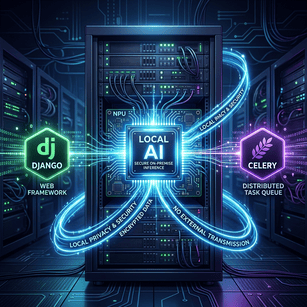
As AI becomes a core component of modern web applications, developers are facing a critical challenge: data privacy. Sending sensitive user data, proprietary company documents, or confidential medical records to public APIs like OpenAI or Anthropic is often a non-starter for enterprise applications.
The solution is running Large Language Models (LLMs) locally. Thanks to tools like Ollama and the open-source release of highly capable models like Meta’s Llama 3 and Mistral, you can now run powerful AI entirely on your own infrastructure.
However, integrating a local LLM into a Django web application introduces a major engineering hurdle. LLM generation is computationally heavy and slow. If you trigger an LLM directly inside a Django view, your web server will block until the model finishes generating the response. This leads to severe bottlenecks, application timeouts, and a terrible user experience.
In this comprehensive guide, we will solve this problem by building a robust, production-ready architecture. We will integrate a local LLM (via Ollama) with Django, and use Celery and Redis to offload the heavy AI generation to asynchronous background tasks.
Table of Contents
Why Run Local LLMs in Django?
The Architecture: Django, Ollama, Celery, and Redis
Step 1: Setting Up the Local LLM Environment
Step 2: Configuring Django and Celery
Step 3: Writing the Asynchronous LLM Task
Step 4: Building the Django API Views
Practical Examples and Real-World Use Cases
Common Mistakes to Avoid
Best Practices
Security Considerations
Performance Considerations
Troubleshooting Common Issues
Frequently Asked Questions (FAQ)
Conclusion
Why Run Local LLMs in Django?
Before diving into the code, it is important to understand the business and technical motivations behind this architecture.
Data Privacy and Security Benefits
When you use a local model, your data never leaves your server. This is critical for applications dealing with Healthcare (HIPAA compliance), Finance (PCI-DSS), or proprietary corporate data. You retain 100% ownership and control over the inputs and the generated outputs.
Reducing AI API Costs in Production
Proprietary APIs charge per token. If your Django application processes thousands of large documents per day, these costs can scale uncontrollably. Running local models shifts the cost from an unpredictable operational expense (OpEx) to a fixed capital expense (CapEx)—you only pay for the server hardware.
The Architecture: Django, Ollama, Celery, and Redis
To build a scalable AI application, we must decouple the web server from the AI model.
Why You Can't Call LLMs Synchronously in Views
WSGI servers like Gunicorn, which run Django, use a finite pool of worker processes. If an LLM takes 15 seconds to generate a response, that Django worker is blocked for 15 seconds. If five users request AI generation simultaneously, your entire web server locks up, and new users will receive 502 Bad Gateway or 504 Gateway Timeout errors.
Asynchronous Processing with Celery
We solve this using a message broker (Redis) and a task queue (Celery).
The user requests an AI generation via a Django view.
Django instantly sends a message to Redis saying, "Process this prompt," and immediately returns a
202 Acceptedresponse with a Task ID to the user.A separate Celery worker picks up the message from Redis, communicates with the local LLM (Ollama), and stores the result in the database when finished.
The user's browser polls Django (or uses WebSockets) to check if the task is complete.
Step 1: Setting Up the Local LLM Environment
We will use Ollama, an excellent tool that simplifies managing and running local LLMs.
Installing Ollama and Pulling Llama 3
First, install Ollama on your server or local machine. You can download it from ollama.com. If you are on Linux, you can install it via curl:
curl -fsSL https://ollama.com/install.sh | shOnce installed, start the Ollama server in the background, then pull the model you want to use. We will use the 8-billion parameter version of Llama 3.
ollama run llama3Note: This will download several gigabytes of model weights. Ensure you have sufficient disk space.
Testing the Local API
By default, Ollama exposes a REST API at http://localhost:11434. Let's verify it is running:
curl http://localhost:11434/api/generate -d '{
  "model": "llama3",
  "prompt": "Why is Python popular for web development?",
  "stream": false
}'
If you receive a JSON response containing the generated text, your local LLM is ready to integrate with Django.
Step 2: Configuring Django and Celery
Let's set up the Python environment.
Installing Requirements
Ensure your virtual environment is activated, then install Django, Celery, Redis, and the official Ollama Python library:
pip install django celery redis ollamaCreate a new Django project and app:
django-admin startproject ai_project
cd ai_project
python manage.py startapp ai_app
Setting up the Redis Message Broker
You need a running Redis instance to act as the message broker for Celery. If you have Docker installed, you can spin one up easily:
docker run -d -p 6379:6379 redisNext, configure Celery in your Django project. Inside ai_project/ai_project/, create a file named celery.py:
# ai_project/celery.py
import os
from celery import Celery

# Set the default Django settings module for the 'celery' program.
os.environ.setdefault('DJANGO_SETTINGS_MODULE', 'ai_project.settings')

app = Celery('ai_project')

# Using a string here means the worker doesn't have to serialize
# the configuration object to child processes.
app.config_from_object('django.conf:settings', namespace='CELERY')

# Load task modules from all registered Django apps.
app.autodiscover_tasks()
Update your ai_project/__init__.py to ensure Celery starts when Django starts:
# ai_project/__init__.py
from .celery import app as celery_app

__all__ = ('celery_app',)
Finally, add the Celery configurations to your settings.py:
# ai_project/settings.py

# ... existing settings ...

INSTALLED_APPS = [
    # ...
    'ai_app',
]

CELERY_BROKER_URL = 'redis://localhost:6379/0'
CELERY_RESULT_BACKEND = 'redis://localhost:6379/0'
CELERY_ACCEPT_CONTENT = ['json']
CELERY_TASK_SERIALIZER = 'json'

# Database configuration to save LLM outputs
# (Ensure you run python manage.py migrate)
Step 3: Writing the Asynchronous LLM Task
First, we need a Django model to store the prompts and their resulting generations.
Creating the Database Model
# ai_app/models.py
from django.db import models
import uuid

class AIRequest(models.Model):
    STATUS_CHOICES = (
        ('pending', 'Pending'),
        ('processing', 'Processing'),
        ('completed', 'Completed'),
        ('failed', 'Failed'),
    )

    id = models.UUIDField(primary_key=True, default=uuid.uuid4, editable=False)
    prompt = models.TextField()
    response = models.TextField(blank=True, null=True)
    status = models.CharField(max_length=20, choices=STATUS_CHOICES, default='pending')
    created_at = models.DateTimeField(auto_now_add=True)
    updated_at = models.DateTimeField(auto_now=True)

    def __str__(self):
        return f"Request {self.id} - {self.status}"
Run python manage.py makemigrations and python manage.py migrate after creating this.
Creating the Celery Task (tasks.py)
Now, we create the Celery task that will communicate with Ollama. Create tasks.py inside your ai_app directory.
# ai_app/tasks.py
from celery import shared_task
from .models import AIRequest
import ollama
import logging

logger = logging.getLogger(__name__)

@shared_task(bind=True, max_retries=3)
def process_llm_prompt(self, request_id):
    try:
        # 1. Fetch the request from the database
        ai_request = AIRequest.objects.get(id=request_id)
        ai_request.status = 'processing'
        ai_request.save()

        # 2. Call the local Ollama LLM
        # We assume Ollama is running on the default localhost port
        logger.info(f"Sending prompt to local LLM for Request ID: {request_id}")

        response = ollama.chat(model='llama3', messages=[
            {
                'role': 'user',
                'content': ai_request.prompt,
            },
        ])

        # 3. Save the generated response
        ai_request.response = response['message']['content']
        ai_request.status = 'completed'
        ai_request.save()

        return str(request_id)

    except AIRequest.DoesNotExist:
        logger.error(f"AI Request {request_id} not found.")
    except Exception as e:
        logger.error(f"Error processing LLM request {request_id}: {str(e)}")
        # Mark as failed in DB
        if 'ai_request' in locals():
            ai_request.status = 'failed'
            ai_request.response = f"Error: {str(e)}"
            ai_request.save()

        # Retry task if it's a connection issue with Ollama
        raise self.retry(exc=e, countdown=10)
Step 4: Building the Django API Views
We need two endpoints: one to submit the prompt, and another to check the status of the generation.
Triggering the LLM Task
# ai_app/views.py
from django.http import JsonResponse
from django.views.decorators.csrf import csrf_exempt
import json
from .models import AIRequest
from .tasks import process_llm_prompt

@csrf_exempt
def submit_prompt(request):
    if request.method == 'POST':
        try:
            data = json.loads(request.body)
            prompt_text = data.get('prompt')

            if not prompt_text:
                return JsonResponse({'error': 'Prompt is required'}, status=400)

            # Create the database record
            ai_req = AIRequest.objects.create(prompt=prompt_text)

            # Dispatch the Celery task asynchronously
            process_llm_prompt.delay(str(ai_req.id))

            return JsonResponse({
                'message': 'Task queued successfully',
                'request_id': str(ai_req.id)
            }, status=202)

        except json.JSONDecodeError:
            return JsonResponse({'error': 'Invalid JSON'}, status=400)
    return JsonResponse({'error': 'Method not allowed'}, status=405)
Polling for Task Completion
# ai_app/views.py (continued)

def check_status(request, request_id):
    if request.method == 'GET':
        try:
            ai_req = AIRequest.objects.get(id=request_id)

            response_data = {
                'request_id': str(ai_req.id),
                'status': ai_req.status,
            }

            if ai_req.status == 'completed':
                response_data['response'] = ai_req.response
            elif ai_req.status == 'failed':
                response_data['error'] = ai_req.response

            return JsonResponse(response_data, status=200)

        except AIRequest.DoesNotExist:
            return JsonResponse({'error': 'Request ID not found'}, status=404)
    return JsonResponse({'error': 'Method not allowed'}, status=405)
Don't forget to wire these up in your urls.py!
# ai_project/urls.py
from django.urls import path
from ai_app import views

urlpatterns = [
    path('api/generate/', views.submit_prompt, name='submit_prompt'),
path('api/generate/status/<uuid:request_id>/', views.check_status, name='check_status'),]To run this entirely, you need three terminal windows:
ollama run llama3(Runs the LLM)python manage.py runserver(Runs Django)celery -A ai_project worker -l INFO(Runs the Celery task processor)
Practical Examples and Real-World Use Cases
Integrating a private LLM opens up numerous enterprise use cases:
Automated Medical Record Summarization: A Django app used by hospitals where doctors upload patient notes. The local LLM safely summarizes these notes into structured data without HIPAA violations.
Internal Corporate Knowledge Base (RAG): Employees ask questions about proprietary HR policies. Django searches a local vector database, passes the context to Ollama, and returns a private, synthesized answer.
Automated Code Review Systems: Submitting Git commits to a Django endpoint, which queues a Celery task where a local coding model (like CodeLlama) analyzes the diff for security vulnerabilities.
Common Mistakes to Avoid
Calling Ollama Synchronously: As mentioned, never call
ollama.chat()directly insideviews.py. Your server will crash under load.Running Celery and Django on the Same CPU Cores as the LLM: LLMs consume massive CPU/GPU resources. If your LLM uses 100% of your CPU, Redis and Django will starve, causing network timeouts. Always isolate the LLM via Docker resource limits or run it on a dedicated GPU instance.
Ignoring Database Connections in Celery: Celery workers maintain long-running database connections. Ensure you configure
CONN_MAX_AGEproperly in Django settings so Celery doesn't drop connections mid-task.
Best Practices
Use WebSockets for Streaming: The polling method shown above is good, but for a true ChatGPT-like experience, use Django Channels and Redis to stream the response back to the frontend token-by-token.
Queue Throttling: If you have one GPU, it can only process one LLM request at a time efficiently. Configure Celery to limit concurrency:
celery worker --concurrency=1. Otherwise, the LLM server will thrash memory attempting to run multiple massive prompts simultaneously.Model Quantization: Ensure you are using quantized models (like 4-bit or 8-bit GGUF files) through Ollama. This drastically reduces GPU VRAM requirements with minimal loss in accuracy.
Security Considerations
Even though the model is local, security is paramount:
Ollama Network Binding: By default, Ollama binds to
127.0.0.1. Do not expose port11434to the public internet. If Django and Ollama are on different servers, use a private VPC or an SSH tunnel.Prompt Injection: Even local LLMs are susceptible to prompt injection. If you are using the LLM output to execute further code or queries, validate and sanitize the output string rigorously.
Rate Limiting: Protect your Django endpoint (
/api/generate/) using Django REST Framework throttling or Nginx rate limiting. A malicious user spamming requests can easily cause a Denial of Service (DoS) by filling your Celery queue with heavy LLM tasks.
Performance Considerations
Managing GPU VRAM Limits
An 8B parameter model like Llama 3 requires roughly 5-6GB of VRAM to run comfortably. If you run out of VRAM, Ollama will offload processing to your system RAM (CPU). CPU inference is significantly slower (often 10x to 50x slower). Always monitor your VRAM usage using nvidia-smi while the Celery workers are processing tasks.
Batch Processing
If you have hundreds of small tasks (e.g., classifying sentiment of thousands of reviews), processing them one-by-one is inefficient. Modify your Celery architecture to group requests and send them to Ollama as a single batch if the model and API support it.
Troubleshooting Common Issues
Error: ConnectionRefusedError: [Errno 111] Connection refused
Cause: Django/Celery cannot reach Ollama or Redis.
Fix: Ensure
ollama serveis running. If using Docker, ensure the containers share the same network. Ensure Redis is running on port 6379.
Error: Task remains in 'Pending' state indefinitely.
Cause: The Celery worker is not running, or it is pointing to the wrong Redis database.
Fix: Check your terminal to ensure
celery -A ai_project worker -l INFOis active and successfully connected toredis://localhost:6379/0.
Error: Model generates gibberish or stops midway.
Cause: Out of memory (OOM) error on the system, or the prompt context length exceeded the model's limit.
Fix: Check system RAM/VRAM. Try pulling a smaller quantized version of the model.
Frequently Asked Questions (FAQ)
1. Can I run multiple Ollama models at the same time? Yes, but they will share your system's VRAM. If the combined size of the models exceeds your VRAM, performance will degrade severely as it falls back to system RAM.
2. How do I stream the response like ChatGPT does? You will need to implement Django Channels (WebSockets). You configure the Ollama API call with stream=True, and as Ollama yields chunks of text in the Celery worker, you send those chunks over the WebSocket back to the client.
3. Is Ollama the only option? No. You can use vLLM, text-generation-webui, or llama.cpp directly. However, Ollama provides the simplest API and easiest installation for web integration.
4. Can I deploy this architecture on AWS or DigitalOcean? Absolutely. You should provision an instance with a GPU (e.g., AWS EC2 g4dn series). Deploy Django and Celery via Docker, and install Ollama directly on the host to access the GPU drivers easily.
5. How do I give the local LLM access to my database? This is called Retrieval-Augmented Generation (RAG). You would use a library like LangChain or LlamaIndex in your Celery task to query your database, format the results into a context string, and prepend it to the user's prompt before sending it to Ollama.
6. Does Celery lock up when waiting for the LLM? Yes, the specific Celery worker process handling the task will block until Ollama responds. This is why you run Celery independently of your Django web workers.
7. Can I use a different message broker than Redis? Yes, RabbitMQ is a highly recommended alternative for Celery in production environments, offering robust message acknowledgment.
8. Is it legal to use Llama 3 for commercial applications? Meta allows commercial use of Llama 3 for applications with fewer than 700 million monthly active users. Always verify the specific license of the model you download.
Conclusion
Integrating AI into web applications no longer requires sacrificing data privacy or paying exorbitant API fees. By combining the power of Django for the web layer, Celery and Redis for asynchronous task management, and Ollama for local model execution, you can build secure, scalable, and private AI applications.
While the architecture requires more operational overhead than simply calling a public API, the benefits in security, cost control, and data ownership make it an essential skill for modern backend engineers.
Suggested MofidTech Tool: MofidTech Local LLM Resource Calculator : Need to know if your server can handle Llama 3? Use our free tool to input model parameters and quantization levels to instantly calculate the required GPU VRAM and system memory before deploying.
💬 Comments
No comments yet. Be the first to comment!
Login to comment.